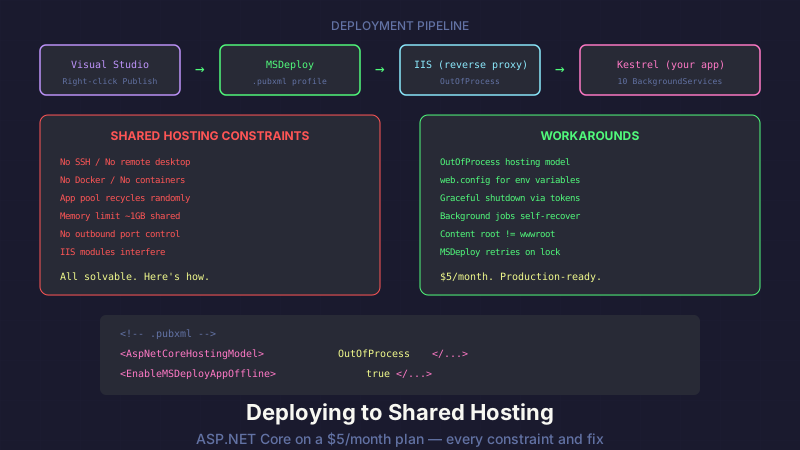
Our entire game runs on a $5/month SmarterASP.NET plan. Here's every constraint we hit and how we worked around it.
API Combat is an ASP.NET Core 8 application with 10 background services, EF Core with SQL Server, JWT authentication, and a full combat simulation engine. It deploys to shared hosting via MSDeploy from Visual Studio. No Azure. No Docker. No Kubernetes. No CI/CD pipeline. Just a publish profile and a prayer.
That sounds like a limitation. It turned out to be the best architectural decision I made.
OutOfProcess Hosting: Kestrel Behind IIS
The first wall you hit on shared hosting is the hosting model. New ASP.NET Core projects default to InProcess hosting, where your app runs directly inside IIS's w3wp.exe process. That's faster for simple apps, but on shared hosting, IIS modules from the hosting provider interfere with your application in unpredictable ways.
I covered the 502.5 error this causes in Fixing 502.5 — ANCM Out-Of-Process Startup Failure. The short version: shared hosting application pools run OutOfProcess, and if your app doesn't match, you get a cryptic startup failure.
OutOfProcess means Kestrel runs as a separate process and IIS reverse-proxies to it. Two processes instead of one. Slightly more overhead. But your app is isolated from whatever IIS modules the hosting provider has installed — URL rewriters, security scanners, logging hooks. Your code runs in Kestrel's clean process, and IIS just forwards traffic.
In both your .csproj and .pubxml:
<PropertyGroup>
    <AspNetCoreHostingModel>OutOfProcess</AspNetCoreHostingModel>
</PropertyGroup>
Both files. They must agree. I've been burned by this mismatch at least three times.
The Publish Profile: MSDeploy with Retries
Deployment is a Visual Studio publish profile using MSDeploy. No GitHub Actions, no Azure DevOps, no Jenkins. Right-click, publish, done.
Here's the .pubxml that actually works:
<?xml version="1.0" encoding="utf-8"?>
<Project>
  <PropertyGroup>
    <WebPublishMethod>MSDeploy</WebPublishMethod>
    <PublishProvider>Custom</PublishProvider>
    <LastUsedBuildConfiguration>Release</LastUsedBuildConfiguration>
    <LastUsedPlatform>Any CPU</LastUsedPlatform>
    <SiteUrlToLaunchAfterPublish>https://apicombat.com</SiteUrlToLaunchAfterPublish>
    <LaunchSiteAfterPublish>true</LaunchSiteAfterPublish>
    <ExcludeApp_Data>false</ExcludeApp_Data>
    <ProjectGuid>your-guid-here</ProjectGuid>
    <MSDeployServiceURL>your-server.smarterasp.net</MSDeployServiceURL>
    <DeployIisAppPath>apicombat.com</DeployIisAppPath>
    <RemoteSitePhysicalPath />
    <SkipExtraFilesOnServer>true</SkipExtraFilesOnServer>
    <MSDeployPublishMethod>WMSVC</MSDeployPublishMethod>
    <EnableMSDeployBackup>false</EnableMSDeployBackup>
    <UserName>your-username</UserName>
    <TargetFramework>net8.0</TargetFramework>
    <SelfContained>false</SelfContained>
    <AspNetCoreHostingModel>OutOfProcess</AspNetCoreHostingModel>

    <!-- The lines that save your sanity -->
    <EnableMSDeployAppOffline>true</EnableMSDeployAppOffline>
    <RetryAttemptsForDeployment>10</RetryAttemptsForDeployment>
    <RetryIntervalForDeployment>15000</RetryIntervalForDeployment>
  </PropertyGroup>
</Project>
Three properties at the bottom do the heavy lifting:
EnableMSDeployAppOffline=true drops an app_offline.htm file into the site root before deploying. IIS sees that file, shuts down the application, and releases file locks. I wrote an entire post about this mechanism — it's the difference between flaky deployments and reliable ones.
RetryAttemptsForDeployment=10 and RetryIntervalForDeployment=15000 tell MSDeploy to retry 10 times at 15-second intervals if it encounters locked files. Even with app_offline.htm, IIS sometimes takes a moment to fully release everything. Ten retries at 15 seconds means you're covered for up to two and a half minutes of lock contention. I've never needed more than two retries, but having the headroom means I don't babysit deploys.
The App Pool Recycle Dance
Even with EnableMSDeployAppOffline, there's a catch on SmarterASP.NET. The app pool keeps your DLLs loaded in memory. If the app pool doesn't fully recycle before MSDeploy starts copying files, you'll get ERROR_FILE_IN_USE on locked DLLs.
The fix is manual but reliable: before clicking Publish in Visual Studio, log into the SmarterASP.NET control panel and recycle the dedicated app pool. Wait 10 seconds. Then publish.
Could I automate this? Probably. SmarterASP.NET has an API for pool management. But the manual step takes 15 seconds, I deploy maybe twice a week, and automating it would mean storing hosting credentials in a script. The manual step is a conscious tradeoff — 30 seconds of my time versus a new attack surface.
Shadow Copy: The Feature That Doesn't Work Here
ASP.NET Core 8 introduced shadow copying for IIS deployments. The idea is elegant: IIS copies your DLLs to a shadow directory and loads them from there, leaving the originals unlocked for overwriting during deployment. No app_offline.htm needed. No file lock errors. Zero-downtime deploys.
You enable it in web.config with handler settings:
<aspNetCore processPath="dotnet" arguments=".\YourApp.dll"
            hostingModel="outofprocess">
  <handlerSettings>
    <handlerSetting name="enableShadowCopy" value="true" />
    <handlerSetting name="shadowCopyDirectory" value="../ShadowCopyDirectory/" />
  </handlerSettings>
</aspNetCore>
I tried it. On SmarterASP.NET, it causes an immediate 502.5 startup failure. The shadow copy directory either can't be created (permissions) or the ANCM module on the shared server doesn't support the handler settings configuration. The error in stdout logging was unhelpful — just a generic startup failure with no mention of shadow copy.
I disabled it, accepted the brief downtime during deploys, and moved on. The app_offline.htm approach gives users a friendly "updating" page for 30-60 seconds. For a game where battles resolve asynchronously anyway, nobody notices.
10 Background Services, One Process
On Azure, you'd split background work into Azure Functions or a separate Worker Service. On shared hosting, you get one process.
API Combat runs 10 background services in the same ASP.NET Core process as the web API: battle processing, weekly modifier rotation, daily challenge generation, strategy decay, guild boss spawns, invite expiry, guild war matching, tournament processing, notification cleanup, and admin health alerts.
All 10 use ASP.NET Core's built-in BackgroundService base class. No Hangfire. No Quartz.NET. No external job scheduler. Just while loops with Task.Delay and scoped service resolution for the DbContext.
The constraint of a single process actually simplified the architecture. No message bus between services. No serialization overhead. No network hops. Background services call the same service layer as the API controllers. One codebase, one deployment, one set of logs.
The downside: when the app pool recycles (and it will — shared hosting recycles pools on a schedule or when memory thresholds are hit), all 10 services restart. They handle this gracefully by recalculating delay timers from wall clock time rather than storing "last run" timestamps in memory. A recycle at 2:01 AM doesn't cause the daily challenge job to re-run — it calculates "next midnight is 22 hours away" and sleeps.
EF Core Migrations on Startup
With no CI/CD pipeline, there's no migration step between "code is deployed" and "app is running." So API Combat runs migrations on startup:
using (var scope = app.Services.CreateScope())
{
    var db = scope.ServiceProvider.GetRequiredService<AppDbContext>();
    await db.Database.MigrateAsync();
}
This runs before app.Run(). If there are pending migrations, they execute against the production database. If there aren't, MigrateAsync() is a no-op — it checks the __EFMigrationsHistory table and returns.
Is this best practice? For a startup or a solo dev shipping fast, absolutely. For an enterprise with multiple environments and approval gates, probably not. But on shared hosting where you can't SSH in and run dotnet ef database update, startup migrations are the pragmatic choice.
The key safety net: I test every migration locally against a seeded database before deploying. If a migration fails on startup in production, the app doesn't start, and the app_offline.htm page stays up until I fix and redeploy. Not elegant, but clear.
LocalDB vs. Production SQL Server
Development uses LocalDB. Production uses the SQL Server instance provided by SmarterASP.NET. The connection strings live in environment-specific appsettings files:
// appsettings.Development.json
{
  "ConnectionStrings": {
    "DefaultConnection": "Server=(localdb)\\mssqllocaldb;Database=ApiCombat;Trusted_Connection=True;MultipleActiveResultSets=true"
  }
}
// appsettings.Production.json
{
  "ConnectionStrings": {
    "DefaultConnection": "Server=your-server.mssql.somee.com;Database=ApiCombat;User Id=your-user;Password=your-password;TrustServerCertificate=True"
  }
}
The appsettings.Production.json file is in .gitignore. It lives on the server and survives deployments because the publish profile sets SkipExtraFilesOnServer=true — MSDeploy doesn't delete files on the server that aren't in the publish output.
This also means I can update production config (connection strings, API keys, feature flags) by editing the file on the server via FTP without redeploying the entire application.
The dotnet-ef Version Pinning Gotcha
This one cost me an afternoon. If you're targeting net8.0 and you install the latest dotnet-ef tool (which as of early 2026 is version 10.x), you'll get a System.Runtime version mismatch when running migrations:
System.IO.FileLoadException: Could not load file or assembly
'System.Runtime, Version=10.0.0.0'. The located assembly's manifest
definition does not match the assembly reference.
The dotnet-ef tool version must match your target framework major version. For net8.0, that means:
dotnet tool install --global dotnet-ef --version 8.0.11
Or if you already have 10.x installed:
dotnet tool update --global dotnet-ef --version 8.0.11
This isn't documented clearly anywhere. The error message mentions System.Runtime and assembly manifests, which sends you down a rabbit hole of runtime binding redirects when the actual fix is just pinning the tool version. If you're hitting a System.Runtime mismatch with EF Core tools, check dotnet ef --version first.
The Architecture That Emerged
Here's what the full deployment architecture looks like:
┌──────────────────────────────────────────────────────────┐
│                   SmarterASP.NET ($5/mo)                 │
│                                                          │
│  ┌──────────┐      ┌──────────────────────────────────┐  │
│  │   IIS    │─────▶│  Kestrel (OutOfProcess)          │  │
│  │  Reverse │      │                                  │  │
│  │  Proxy   │      │  ┌─────────────────────────────┐ │  │
│  └──────────┘      │  │  ASP.NET Core Web API        │ │  │
│                    │  │  + 10 BackgroundServices     │ │  │
│                    │  │  + EF Core (MigrateAsync)    │ │  │
│                    │  └─────────────────────────────┘ │  │
│                    └──────────────┬───────────────────┘  │
│                                  │                       │
│                    ┌─────────────▼─────────────┐         │
│                    │  SQL Server (MSSQL)       │         │
│                    └───────────────────────────┘         │
│                                                          │
│  Deploy: Visual Studio → MSDeploy → app_offline.htm      │
│  Migrations: MigrateAsync() on startup                   │
│  Config: appsettings.Production.json (on server, FTP)    │
└──────────────────────────────────────────────────────────┘
No message bus. No container orchestrator. No separate worker process. No migration pipeline. No secrets vault. One process, one database, one deploy target.
Constraints Breed Creativity
I could move API Combat to Azure App Service with deployment slots, Azure SQL with managed migrations, Azure Functions for background work, and Key Vault for secrets. The architecture would be "correct" by enterprise standards. It would also cost 20-50x more per month and take weeks to set up.
Shared hosting forced every decision toward simplicity:
- One process instead of microservices means no network latency between components
- Startup migrations instead of a pipeline means zero infrastructure to maintain
- BackgroundService instead of Azure Functions means the background work shares the same DI container and service layer as the API
- FTP config files instead of Key Vault means config changes don't require a redeploy
- MSDeploy retries instead of blue-green deployment means accepting 30 seconds of downtime, which is fine for an async game
Every one of these is a tradeoff. None of them are the "right" answer for all projects. But for a solo developer shipping a game that handles hundreds of battles a day? This is exactly the right amount of architecture.
The $5/month plan runs everything. When the game outgrows it — and I'll know because the admin alert job will tell me — I'll scale. But I'm not paying for scale I don't need, and I'm not maintaining infrastructure I don't use.
Ship simple. Scale later. That's the shared hosting philosophy.
This post is part of a series about building API Combat. See also: Introducing API Combat, 10 Background Services on Shared Hosting, Fixing 502.5 — ANCM Out-Of-Process Startup Failure, and The IIS App Offline Deployment Trick.