Deploying to IIS and hitting ERROR_FILE_IN_USE is one of those frustrations that makes you question your career choices. The application is running, IIS has file locks on your DLLs, and MSDeploy just shrugs and fails. I'd been working around this for months with retry loops and manual FTP deletions until I discovered a feature that's been in IIS all along.
The trick is a single file: app_offline.htm.
The Problem
When deploying ASP.NET Core applications to IIS—especially self-contained deployments with the runtime bundled—you'll often see:
Error: Web Deploy failed.
ERROR_FILE_IN_USE: Cannot replace file because it is in use.
IIS keeps your application's DLLs loaded in memory. Even recycling the app pool doesn't always release the locks immediately, particularly on shared hosting.
Common workarounds:
- Restart the entire app pool (affects other sites on shared hosting)
- Wait and retry (unreliable)
- Delete files manually via FTP (tedious)
- Contact hosting support (slow)
None of these work well in a CI/CD pipeline.
The Solution
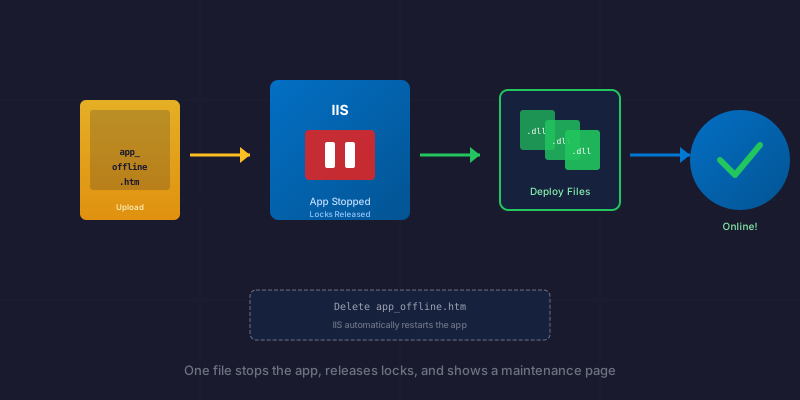
IIS has a built-in convention: if it detects a file named app_offline.htm in your application's root, it immediately:
- Stops the application — unloads everything and releases all file locks
- Serves the HTML content of that file for ALL incoming requests
- Waits for you to delete the file before restarting
This is exactly what we need for clean deployments.
How It Works
┌─────────────┐     ┌──────────────────┐     ┌─────────────┐
│   Deploy    │────▶│ Upload           │────▶│ IIS detects │
│   Starts    │     │ app_offline.htm  │     │ and stops   │
│             │     │                  │     │ application │
└─────────────┘     └──────────────────┘     └─────────────┘
                                                    │
                                                    ▼
┌─────────────┐     ┌──────────────────┐     ┌─────────────┐
│   App       │◀────│ Delete           │◀────│ Deploy      │
│   Restarts  │     │ app_offline.htm  │     │ new files   │
│             │     │                  │     │ (no locks!) │
└─────────────┘     └──────────────────┘     └─────────────┘
While offline, users see a friendly maintenance message instead of an error page.
Create the Maintenance Page
Make it look decent—users might actually see it:
<!DOCTYPE html>
<html>
<head>
    <title>Site Updating</title>
    <style>
        body {
            font-family: -apple-system, BlinkMacSystemFont, 'Segoe UI', sans-serif;
            display: flex;
            justify-content: center;
            align-items: center;
            height: 100vh;
            margin: 0;
            background: #f8fafc;
        }
        .container { text-align: center; padding: 2rem; }
        h1 { color: #1e40af; font-size: 1.5rem; }
        p { color: #64748b; }
        .spinner {
            width: 40px;
            height: 40px;
            border: 4px solid #e2e8f0;
            border-top: 4px solid #1e40af;
            border-radius: 50%;
            animation: spin 1s linear infinite;
            margin: 1rem auto;
        }
        @keyframes spin {
            0% { transform: rotate(0deg); }
            100% { transform: rotate(360deg); }
        }
    </style>
</head>
<body>
    <div class="container">
        <div class="spinner"></div>
        <h1>We're updating...</h1>
        <p>Please wait a moment and refresh the page.</p>
    </div>
</body>
</html>
The Deployment Script
Here's a PowerShell script using MSDeploy:
param(
    [string]$SiteName,
    [string]$Server,
    [string]$Username,
    [string]$Password,
    [string]$PublishFolder
)

$msdeployPath = "${env:ProgramFiles}\IIS\Microsoft Web Deploy V3\msdeploy.exe"

# Step 1: Upload app_offline.htm to stop the app
Write-Host "Taking application offline..."
& $msdeployPath `
    -verb:sync `
    -source:filePath="./app_offline.htm" `
    -dest:filePath="$SiteName/app_offline.htm",computerName="$Server",userName="$Username",password="$Password",authType="basic" `
    -allowUntrusted

Start-Sleep -Seconds 2  # Give IIS time to detect and stop

# Step 2: Deploy new files (no more locks!)
Write-Host "Deploying new files..."
& $msdeployPath `
    -verb:sync `
    -source:contentPath="$PublishFolder" `
    -dest:contentPath="$SiteName",computerName="$Server",userName="$Username",password="$Password",authType="basic" `
    -allowUntrusted `
    -skip:objectName=filePath,absolutePath="app_offline\.htm"

# Step 3: Delete app_offline.htm to restart
Write-Host "Bringing application online..."
& $msdeployPath `
    -verb:delete `
    -dest:filePath="$SiteName/app_offline.htm",computerName="$Server",userName="$Username",password="$Password",authType="basic" `
    -allowUntrusted

Write-Host "Deployment complete!"
The -skip parameter in step 2 is important—it prevents MSDeploy from deleting app_offline.htm during the sync, which would restart the app before deployment finishes.
GitHub Actions Version
- name: Take app offline
  run: |
    curl -T ./app_offline.htm -u "${{ secrets.FTP_USER }}:${{ secrets.FTP_PASS }}" \
      ftp://${{ secrets.FTP_SERVER }}/site/wwwroot/

- name: Deploy application
  uses: SamKirkland/FTP-Deploy-Action@v4
  with:
    server: ${{ secrets.FTP_SERVER }}
    username: ${{ secrets.FTP_USER }}
    password: ${{ secrets.FTP_PASS }}
    local-dir: ./publish/
    server-dir: /site/wwwroot/

- name: Bring app online
  run: |
    curl -X "DELE app_offline.htm" -u "${{ secrets.FTP_USER }}:${{ secrets.FTP_PASS }}" \
      ftp://${{ secrets.FTP_SERVER }}/site/wwwroot/
Why Not Just Recycle the App Pool?
On shared hosting, you often share an app pool with other sites. Recycling it:
- Affects all sites in the pool
- May not release file locks immediately
- Often requires contacting support
The app_offline.htm approach is surgical—it only affects your specific application and guarantees file locks are released.
Gotchas
File name is case-sensitive on some systems — always use lowercase app_offline.htm
IIS needs a moment — add a 2-second sleep after uploading before deploying:
Start-Sleep -Seconds 2
Works with everything IIS hosts — ASP.NET Core, ASP.NET MVC, static sites, WebForms (if you're still doing that)
Self-contained deployments benefit most — since they bundle the runtime, there are more locked files
The Payoff
This pattern turned my flaky 50%-success-rate deployments into reliable single-shot deploys. No more retry loops, no more FTP file deletions, no more support tickets. Just upload one file, deploy, delete the file.
The feature has been in IIS for years. I just wish I'd known about it sooner.
Sometimes the best solutions are hiding in plain sight. If you're fighting file locks on IIS deployments, try this before building elaborate retry logic.