The Error That Keeps Coming Back
You publish your ASP.NET Core app to shared hosting, hit the URL, and get this:
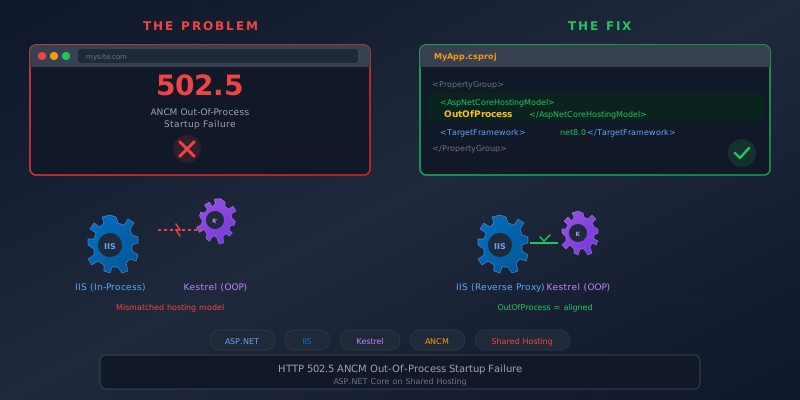
HTTP Error 502.5 - ANCM Out-Of-Process Startup Failure
The page helpfully suggests checking event logs, enabling stdout logging, and attaching a debugger. What it doesn't tell you is the most common cause on shared hosting: your app's hosting model doesn't match the application pool.
I've hit this error multiple times deploying new sites to SmarterASP.NET and I keep forgetting the fix. This post is the note I wish I'd written the first time.
InProcess vs OutOfProcess — What's the Difference?
ASP.NET Core on IIS supports two hosting models:
- InProcess — Your app runs directly inside the IIS worker process (
w3wp.exe). One process. Simple. - OutOfProcess — IIS starts Kestrel as a separate process, then reverse-proxies requests to it. Two processes.
Here's the catch: all apps in the same IIS application pool must use the same hosting model. You can't mix InProcess and OutOfProcess in the same pool — they're fundamentally different execution models. InProcess runs your code inside w3wp.exe directly. OutOfProcess runs it in a separate Kestrel process. The worker process can't do both at once.
On shared hosting like SmarterASP.NET, your sites typically share an application pool. If your existing sites use OutOfProcess, every new site must too.
The Problem
New ASP.NET Core projects default to InProcess when you don't specify a hosting model. Since .NET Core 3.0, InProcess has been the default — it's faster and simpler for single-site deployments.
But if your application pool is already running OutOfProcess (because your other sites are configured that way), deploying an InProcess app into that pool causes a startup failure. The pool can't accommodate both models, and you get 502.5.
The Fix
Explicitly set the hosting model in two places — they both need to agree.
1. Your .csproj
<PropertyGroup>
    <TargetFramework>net10.0</TargetFramework>
    <AspNetCoreHostingModel>OutOfProcess</AspNetCoreHostingModel>
    <UseAppHost>true</UseAppHost>
</PropertyGroup>
2. Your publish profile (.pubxml)
<PropertyGroup>
    <!-- other publish settings... -->
    <AspNetCoreHostingModel>OutOfProcess</AspNetCoreHostingModel>
</PropertyGroup>
Add OutOfProcess to both files, republish, done.
Where Are These Files?
YourProject/
  YourProject.csproj                          ← hosting model here
  Properties/
    PublishProfiles/
      YourProfile.pubxml                      ← and here
In Visual Studio, you can right-click the project → Publish → edit your profile settings. But editing the XML directly is faster and you can see exactly what's set.
Why Both Files Matter
The .csproj setting controls what gets written into the generated web.config during build. The .pubxml can override it during publish. If they disagree, the publish profile wins — which means you can have the right value in your csproj but the wrong one sneaking in via the pubxml (or vice versa).
The generated web.config in your publish output is what IIS actually reads:
<!-- What your pool expects -->
<aspNetCore processPath="dotnet"
            arguments=".\YourApp.dll"
            hostingModel="outofprocess" />

<!-- What a new project defaults to (no explicit setting = inprocess) -->
<aspNetCore processPath="dotnet"
            arguments=".\YourApp.dll"
            hostingModel="inprocess" />
If you've already published and want a quick check, open the web.config in your publish output (or on the server via FTP) and look at the hostingModel attribute.
How to Know Which Model Your Pool Uses
If you're not sure what your existing sites use, check the .csproj of a site that's already deployed and working:
<!-- If you see this, the pool runs OutOfProcess -->
<AspNetCoreHostingModel>OutOfProcess</AspNetCoreHostingModel>

<!-- If you see this (or nothing), the pool runs InProcess -->
<AspNetCoreHostingModel>InProcess</AspNetCoreHostingModel>
On SmarterASP.NET, you can also check via the control panel or look at the web.config of a working site on the server.
Confirming the Problem
If you want to verify before changing anything, enable stdout logging. On the server, edit web.config:
<aspNetCore processPath="dotnet"
            arguments=".\YourApp.dll"
            stdoutLogEnabled="true"
            stdoutLogFile=".\logs\stdout">
Create a logs folder in your site root, hit the page, and check the log file. You'll see the actual startup error that ANCM is hiding behind the generic 502.5 page.
Other 502.5 Causes
If the hosting model is already correct, check these:
Missing .NET Runtime on the Server
If the server doesn't have your target framework installed — say you're on net10.0 but the host only has .NET 8 — the app can't start regardless of hosting model. The stdout log will say:
It was not possible to find any compatible framework version
The framework 'Microsoft.NETCore.App', version '10.0.0' was not found.
The fix is either to ask your host to install the runtime, downgrade your target framework, or publish as self-contained:
<!-- In your .pubxml -->
<SelfContained>true</SelfContained>
<RuntimeIdentifier>win-x64</RuntimeIdentifier>
This bundles the entire .NET runtime with your app (80-150 MB larger, but no server dependency).
App Crashes on Startup
If your app throws an unhandled exception during startup (bad connection string, missing config, DI error), ANCM reports it as a startup failure. The stdout log will show the actual exception. Common culprits:
- Missing
appsettings.jsonor environment-specific config - Database connection string pointing to
localhostinstead of the production server - A required environment variable not set on the host
Wrong processPath in web.config
For framework-dependent deployments, processPath should be dotnet with your DLL as an argument. For self-contained, it should point to your .exe directly. Publishing usually generates this correctly, but if you've manually edited web.config, double-check it.
The Checklist
Next time you see 502.5 on shared hosting:
- Check the hosting model — Does
AspNetCoreHostingModelin both.csprojand.pubxmlmatch what the application pool expects? - Check
web.config— Does the publishedweb.confighave the correcthostingModelvalue? - Enable stdout logging — What does the log actually say?
- Check the runtime — Does the server have your target framework? If not, publish self-contained.
On shared hosting like SmarterASP.NET, it's almost always #1. A new project defaults to InProcess, your pool expects OutOfProcess, and nobody tells you until you see 502.5. Add the explicit setting to both files, republish, and move on with your day.
This post exists because I've fixed this exact error at least three times and kept forgetting which files to change and what value to set. Now it's written down. Future me: you're welcome.
For the full shared hosting deployment story — MSDeploy profiles, environment variables via web.config, app pool recycle handling, and more — see Deploying ASP.NET Core to Shared Hosting.