You deploy your Blazor WASM app. CI/CD shows green. You visit your site and see:
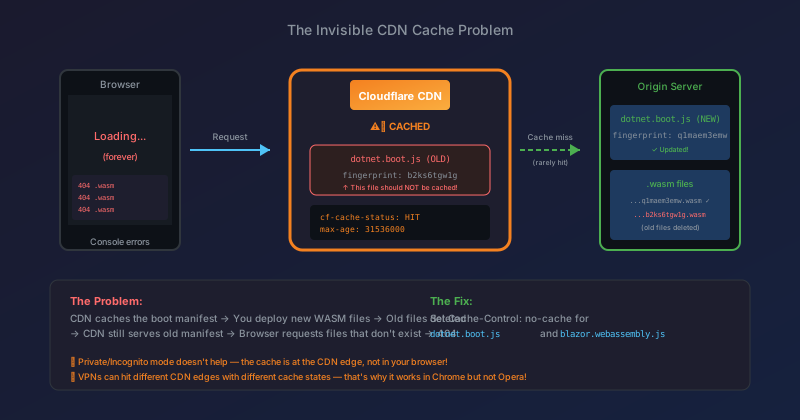
Loading...
Forever. The console is filled with 404 errors for files that definitely exist on your server—but with different fingerprints than what the browser is requesting.
Welcome to the CDN caching gotcha that cost me an evening of confused debugging.
The Root Cause
Blazor WASM uses fingerprinted filenames for cache-busting. When you build, files get names like:
System.Private.CoreLib.q1maem3emw.wasm(new build)System.Private.CoreLib.b2ks6tgw1g.wasm(old build)
The manifest that tells the browser which files to load is embedded in dotnet.boot.js. This is the critical file.
Here's the problem:
- Your CDN (Cloudflare) caches
dotnet.boot.jswith a longmax-age(often 1 year for static assets) - You deploy new code with new fingerprinted WASM files
- Old WASM files are deleted (MSDeploy sync removes them)
- CDN still serves the OLD
dotnet.boot.jswith references to OLD fingerprints - Browser requests files that no longer exist → 404 → App fails to load
Why Private Mode Doesn't Help
This is what makes it so confusing. You think "must be browser cache" and open a private window. Still broken!
That's because the cache is at the CDN edge, not in your browser:
Browser → Cloudflare Edge → Your Server
                ↑
        (cached old files here)
Even a fresh browser with zero cache hits the same Cloudflare edge server serving stale content.
The Evidence
Check your response headers:
curl -I https://yoursite.com/_framework/dotnet.boot.js
Cache-Control: max-age=31536000   # 1 year!
cf-cache-status: HIT              # Cloudflare serving cached version
Age: 2964                         # Cached 49 minutes ago
The Real Debugging Journey
Here's what actually happened when I hit this in production. This wasn't hypothetical—it was a frustrating hour of "why doesn't this work?!"
"It Works in Chrome But Not Opera"
After deploying, Chrome worked fine (after a hard refresh), but Opera kept failing. I thought it was a browser-specific issue. Hours of confusion.
The twist: Opera had its built-in VPN enabled. This routed traffic through a different geographic path, hitting a completely different Cloudflare edge server—one that still had stale cached files.
Chrome (no VPN):
  Your IP → Cloudflare Edge A (Chicago) → Origin
                    ↑
            (fresher cache)

Opera (with VPN):
  Your IP → VPN Exit (Netherlands) → Cloudflare Edge B → Origin
                                            ↑
                                    (stale cached files)
Lesson: Different network paths hit different CDN edges with different cache states.
"Private Mode Should Fix It, Right?"
Opened Opera private window. Still broken. Same 404 errors.
This is the most confusing part—you expect private mode to have zero cache. And it does... for browser cache. But CDN cache is server-side. Private mode doesn't help.
"Let's Purge Cloudflare"
Went to Cloudflare Dashboard → Caching → Configuration → Purge Everything.
Success message: "Changes should take effect in less than 5 seconds."
Refreshed. Still broken! Different errors now (only one ICU data file failing instead of everything), but still broken.
"Close Browser, Reopen, Try Again"
Completely closed Opera. Reopened. Navigated to the site fresh.
Still failing on that one file. Even though curl from the command line returned 200 OK for the exact same URL.
The Fix That Finally Worked
In DevTools → Network tab → checked "Disable cache" checkbox → refreshed.
IT WORKED.
The "Disable cache" option in DevTools bypasses ALL caching layers when DevTools is open—including any residual browser cache that wasn't cleared by closing/reopening.
The Multi-Layer Cache Onion
What I learned is that caching happens at multiple layers:
Layer 1: Browser Memory Cache (cleared by closing tab)
Layer 2: Browser Disk Cache (cleared by "Clear browsing data")
Layer 3: Service Worker Cache (if applicable)
Layer 4: CDN Edge Cache (Cloudflare) ← The sneaky one
Layer 5: Origin Server Cache (if applicable)
The "Disable cache" checkbox in DevTools bypasses layers 1-3. Purging Cloudflare handles layer 4. You need BOTH when things get really stuck.
Why One File Kept Failing
After the Cloudflare purge, most files loaded fine, but one ICU data file kept returning 404 in the browser while curl got 200.
This was residual browser disk cache—the browser had cached the 404 error response itself. Even after Cloudflare served fresh content, the browser remembered "that file doesn't exist" from its earlier failed attempt.
The Permanent Fix
Add a web.config to your Blazor WASM wwwroot folder that prevents caching of the critical boot files:
<?xml version="1.0" encoding="utf-8"?>
<configuration>
  <system.webServer>
    <staticContent>
      <remove fileExtension=".wasm" />
      <remove fileExtension=".dat" />
      <remove fileExtension=".json" />
      <mimeMap fileExtension=".wasm" mimeType="application/wasm" />
      <mimeMap fileExtension=".dat" mimeType="application/octet-stream" />
      <mimeMap fileExtension=".json" mimeType="application/json" />
    </staticContent>
    <rewrite>
      <rules>
        <rule name="SPA Fallback" stopProcessing="true">
          <match url=".*" />
          <conditions logicalGrouping="MatchAll">
            <add input="{REQUEST_FILENAME}" matchType="IsFile" negate="true" />
            <add input="{REQUEST_FILENAME}" matchType="IsDirectory" negate="true" />
            <add input="{REQUEST_URI}" pattern="^/_framework/.*" negate="true" />
          </conditions>
          <action type="Rewrite" url="/" />
        </rule>
      </rules>
    </rewrite>
  </system.webServer>

  <!-- CRITICAL: Prevent CDN caching of boot files -->
  <location path="_framework/dotnet.boot.js">
    <system.webServer>
      <staticContent>
        <clientCache cacheControlMode="DisableCache" />
      </staticContent>
    </system.webServer>
  </location>
  <location path="_framework/blazor.webassembly.js">
    <system.webServer>
      <staticContent>
        <clientCache cacheControlMode="DisableCache" />
      </staticContent>
    </system.webServer>
  </location>
</configuration>
The key sections disable caching for:
dotnet.boot.js— Contains the manifest with WASM file fingerprintsblazor.webassembly.js— The Blazor bootstrap script
The fingerprinted .wasm files CAN be cached long-term because their filenames change when content changes—that's the whole point of fingerprinting.
Debugging Checklist
When Blazor WASM fails after deployment:
- ✅ Check if WASM files exist:
curl -I https://site.com/_framework/SomeFile.wasm - ✅ Compare fingerprints: What does browser request vs what's on server?
- ✅ Check CDN headers:
curl -I https://site.com/_framework/dotnet.boot.js - ✅ Look for
cf-cache-status: HITandAge:headers - ✅ Test from different network/VPN to hit different edge
- ✅ Purge CDN cache (Cloudflare → Purge Everything)
- ✅ After purging, use DevTools "Disable cache" checkbox and refresh
- ✅ If using a browser VPN, disable it and try again
Key Takeaways
- CDN caching is invisible — You don't see it in browser DevTools
- Fingerprinted files need un-fingerprinted manifests — The manifest itself must not be cached
- Private browsing doesn't bypass CDN cache — Only your LOCAL cache
- VPNs change which CDN edge you hit — Different edges = different cache states
- Browsers can cache 404 responses — A failed request can be "remembered"
- "Disable cache" in DevTools is the nuclear option — Use it when nothing else works
- Always test deployments from a different network — Hit different edge servers
Why This Bug Is So Hard to Diagnose
Without knowing about CDN caching behavior, the symptoms point everywhere except the real cause:
- "It's a browser issue" (works in Chrome, not Opera)
- "It's a VPN issue" (disabling VPN changes behavior)
- "It's a MIME type issue" (some files fail, others don't)
- "It's a deployment issue" (but CI/CD shows success)
None of those are the real problem. The real problem is that your CDN is helpfully caching a file that should never be cached.
This post was written after an evening of debugging why a Blazor WASM app worked in one browser but not another, only to discover Cloudflare was the culprit all along. If this saves you the same frustration, it was worth documenting.
Related Posts
- Blazor WASM Says 'Loading...' Forever — Another Blazor WASM loading issue (different cause)
- CI/CD Version Verification — How to verify deployments actually worked