In my previous post, I set up automated SSL certificate generation using Certbot, Cloudflare DNS, and a Raspberry Pi. The system works great—until you add a new domain and forget the extra steps.
Here's what bit me when adding a new site.
The Setup Command (Easy Part)
Adding a new domain should be straightforward:
sudo certbot certonly \
  --dns-cloudflare \
  --dns-cloudflare-credentials /etc/letsencrypt/cloudflare.ini \
  --dns-cloudflare-propagation-seconds 60 \
  -d newdomain.com \
  -d www.newdomain.com
But then you might see this:
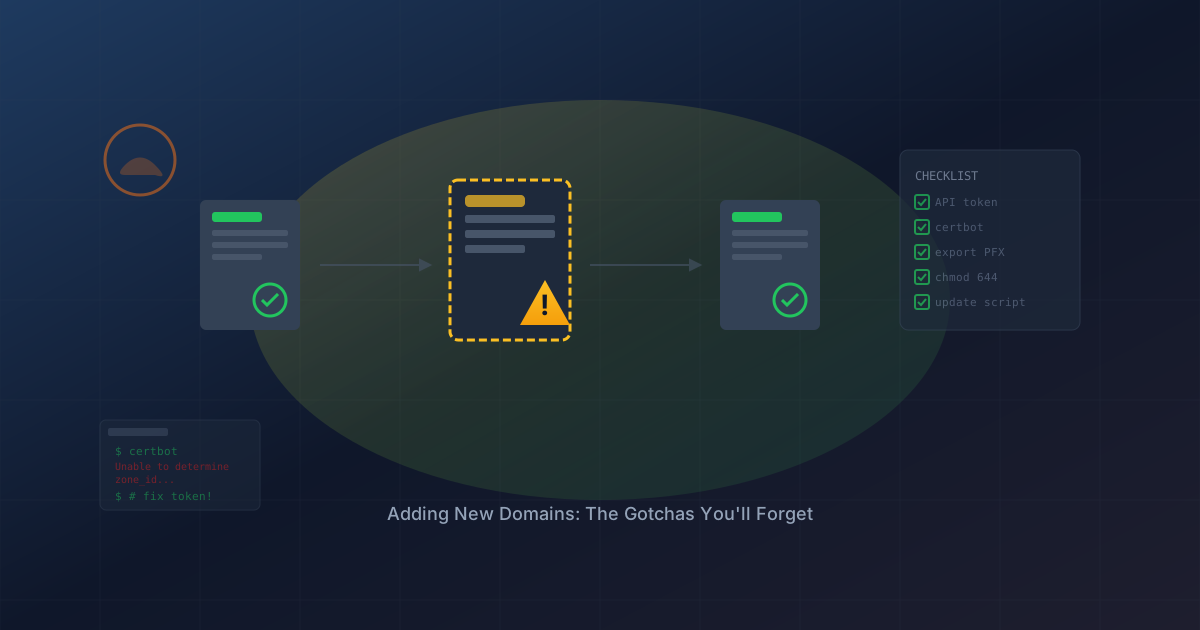
Unable to determine zone_id for newdomain.com using zone names: ['newdomain.com', 'com'].
Please confirm that the domain name has been entered correctly and is already associated
with the supplied Cloudflare account.
Gotcha #1: API Token Permissions
Your Cloudflare API token was created with permissions for specific zones. When you add a new domain to Cloudflare, the existing token doesn't automatically gain access to it.
The fix:
- Go to Cloudflare Dashboard → My Profile → API Tokens
- Edit your existing token
- Under Zone Resources, add the new domain (or switch to "All zones" for future-proofing)
- Save
Now re-run the certbot command.
Gotcha #2: First-Time PFX Export
The renewal hook script only runs during certificate renewal. For a brand new certificate, you need to manually export the PFX:
sudo openssl pkcs12 -export \
  -out /home/user/certs/newdomain.com.pfx \
  -inkey /etc/letsencrypt/live/newdomain.com/privkey.pem \
  -in /etc/letsencrypt/live/newdomain.com/fullchain.pem \
  -name "newdomain.com"
Enter your export password when prompted (use the same one from your export-pfx.sh script).
Gotcha #3: File Permissions for SCP
When you try to copy the PFX to your local machine:
scp user@raspberrypi:/home/user/certs/newdomain.com.pfx .
You might get:
scp: remote open "/home/user/certs/newdomain.com.pfx": Permission denied
The file was created with sudo, so it's owned by root.
The fix:
sudo chmod 644 /home/user/certs/newdomain.com.pfx
Now the SCP works.
Gotcha #4: Update the Export Script
Don't forget to add the new domain to your renewal hook so future renewals automatically export the PFX:
sudo nano /etc/letsencrypt/renewal-hooks/deploy/export-pfx.sh
Add the new domain to the loop:
for DOMAIN in existingdomain.com anotherdomain.org newdomain.com; do
The Complete Checklist
When adding a new domain to your Certbot + Cloudflare setup:
- Add domain to Cloudflare and verify nameservers
- Update API token permissions to include the new zone
- Run
certbot certonlywith DNS challenge - Manually export to PFX (first time only)
- Fix file permissions (
chmod 644) - SCP the PFX to your local machine
- Upload to your hosting provider
- Update
export-pfx.shwith the new domain
Total time once you know the gotchas: about 5 minutes.
What I Learned (Again)
- API tokens are zone-specific unless you explicitly grant broader access
- Renewal hooks don't run on initial certificate generation
- Root-owned files need permission changes before SCP works
- Checklists exist for a reason — even for processes you've done before
The automation is still worth it. These are one-time setup steps per domain, and then you're back to hands-off renewals every 90 days.
This post is part of a series on SSL automation. See also: SSL Automation with Let's Encrypt and Cloudflare for the initial setup, and Upgrading to Wildcard Certificates on covering all subdomains with one cert.