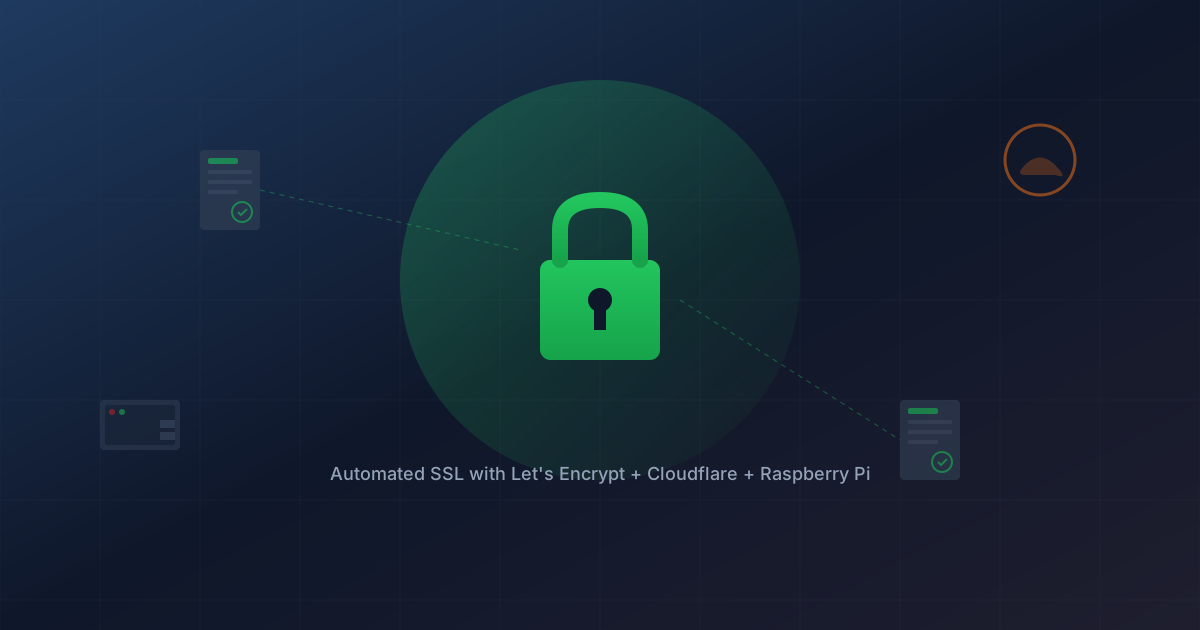
My shared hosting provider (SmarterASP) supports SSL certificates, but the free ones they offer through Let's Encrypt require manual renewal every 90 days. Commercial certificates from providers like Comodo cost money and still expire annually. I wanted free, automated SSL for all my domains without manual intervention.
The solution: a Raspberry Pi running Certbot with Cloudflare DNS for automatic renewal.
The Challenge with Shared Hosting
On a dedicated server or VPS, you'd simply install Certbot and let it auto-renew certificates. But shared hosting presents problems:
- No root access to install Certbot
- Port 80/443 controlled by the hosting provider
- HTTP-01 challenges require control over web server config
The workaround is using DNS-01 challenges, which prove domain ownership by creating a DNS TXT record rather than serving a file over HTTP.
Why Cloudflare?
DNS-01 challenges require programmatic access to your DNS provider. You need an API to create and delete TXT records automatically. Cloudflare offers:
- Free DNS hosting
- A robust API for DNS management
- Fast DNS propagation
- The Cloudflare plugin for Certbot
I migrated my domain's DNS from my registrar (SmarterASP) to Cloudflare's nameservers while keeping the registrar for domain registration only.
The Setup
Hardware
A Raspberry Pi that's always on. In my case, it already runs Klipper for 3D printing, so it was just a matter of adding Certbot to it.
Software Installation
sudo apt update
sudo apt install certbot python3-certbot-dns-cloudflare
Cloudflare API Token
In the Cloudflare dashboard, create an API token with these permissions:
- Zone:DNS:Edit for your specific zones
- Zone:Zone:Read for your specific zones
Store the token in a secure file:
sudo mkdir -p /etc/letsencrypt
sudo nano /etc/letsencrypt/cloudflare.ini
Contents:
dns_cloudflare_api_token = your-api-token-here
Secure it:
sudo chmod 600 /etc/letsencrypt/cloudflare.ini
Generating Certificates
For each domain:
sudo certbot certonly \
  --dns-cloudflare \
  --dns-cloudflare-credentials /etc/letsencrypt/cloudflare.ini \
  --dns-cloudflare-propagation-seconds 60 \
  -d example.com \
  -d www.example.com
The --dns-cloudflare-propagation-seconds 60 gives DNS time to propagate before Let's Encrypt verifies the TXT record.
Exporting for Windows/IIS
SmarterASP runs Windows/IIS, which needs PFX format certificates. I created a post-renewal hook to automatically export certificates:
sudo nano /etc/letsencrypt/renewal-hooks/deploy/export-pfx.sh
#!/bin/bash
PFX_DIR="/home/user/certs"
PFX_PASSWORD="your-secure-password"
mkdir -p "$PFX_DIR"

for DOMAIN in example.com anotherdomain.org; do
    CERT_PATH="/etc/letsencrypt/live/$DOMAIN"
    if [ -d "$CERT_PATH" ]; then
        openssl pkcs12 -export \
            -out "$PFX_DIR/$DOMAIN.pfx" \
            -inkey "$CERT_PATH/privkey.pem" \
            -in "$CERT_PATH/fullchain.pem" \
            -name "$DOMAIN" \
            -passout pass:"$PFX_PASSWORD"
        chmod 644 "$PFX_DIR/$DOMAIN.pfx"
    fi
done
Make it executable:
sudo chmod +x /etc/letsencrypt/renewal-hooks/deploy/export-pfx.sh
Configuring Cloudflare SSL Mode
Once you have a valid certificate installed on your origin server, you should configure Cloudflare to use Full (strict) mode. This ensures end-to-end encryption with certificate validation.
In the Cloudflare dashboard:
- Select your domain
- Go to SSL/TLS → Overview in the left sidebar
- Choose your encryption mode:
| Mode | Browser → Cloudflare | Cloudflare → Origin | Certificate Validation |
|---|---|---|---|
| Off | HTTP | HTTP | None |
| Flexible | HTTPS | HTTP | None |
| Full | HTTPS | HTTPS | None |
| Full (strict) | HTTPS | HTTPS | Yes ✓ |
Select Full (strict) since you now have a valid Let's Encrypt certificate on your hosting provider.
Why this matters: Without strict mode, a man-in-the-middle could potentially intercept traffic between Cloudflare and your origin server. Full (strict) mode validates that your origin certificate is legitimate and not expired, closing that gap.
Note: If you select Full (strict) before uploading a valid certificate to your host, your site will show SSL errors. Get the certificate installed first, then enable strict mode.
Automatic Renewal
Certbot installs a systemd timer that runs twice daily. Check it with:
sudo systemctl status certbot.timer
Test renewal with:
sudo certbot renew --dry-run
Push Notifications with Ntfy
I added a notification to the export script so I know when certificates renew:
curl -s \
  -H "Title: SSL Certs Renewed" \
  -H "Priority: default" \
  -H "Tags: lock,white_check_mark" \
  -d "SSL certificates renewed! Import .pfx files to hosting." \
  ntfy.sh/your-private-topic
Subscribe to the topic in the Ntfy app to get mobile notifications.
The Manual Part
The only manual step remaining: every 90 days when I get the notification, I:
- SSH to the Pi or access the certs folder
- Download the new .pfx files
- Upload to SmarterASP's SSL management page
- Update the binding
This takes about 2 minutes and happens roughly 4 times per year.
What I Learned
- DNS-01 challenges bypass the need for HTTP server control
- Cloudflare's free tier includes API access for DNS automation
- Certbot's renewal hooks can run custom scripts after renewal
- PFX format packages certificate + private key for Windows/IIS
- A Raspberry Pi makes an excellent always-on automation server
The total cost: $0 for SSL certificates that auto-renew indefinitely, plus a few minutes quarterly to upload to hosting.
This post is part of a series on SSL automation. See also: Adding Domains to Your Certbot Setup on expanding to new domains, and Upgrading to Wildcard Certificates on covering all subdomains with one cert.