I got my first spam submission through my contact form yesterday. A message from "Leezed" with a Gmail address, subject line "Hallo, i write about your price" and a body in Lithuanian asking about pricing for... something. Classic bot behavior: vague inquiry, language mismatch, generic enough to work on any site.
Time to add reCAPTCHA.
Why reCAPTCHA v3?
Google offers several CAPTCHA versions. The old "click all the traffic lights" version (v2) works but adds friction. Users hate it. I hate it.
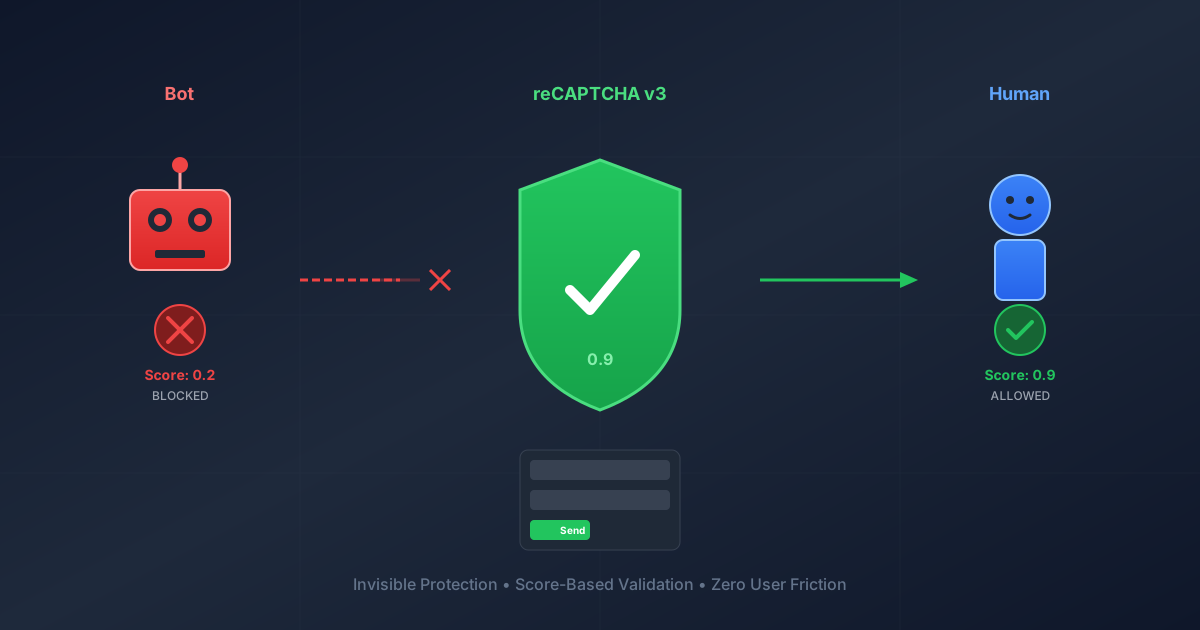
reCAPTCHA v3 is invisible. No checkboxes, no image puzzles. It watches user behavior in the background and returns a score from 0.0 (definitely a bot) to 1.0 (definitely human). You decide what score threshold to accept.
The tradeoff: it requires JavaScript, and privacy-conscious users blocking Google scripts won't generate tokens. For a contact form on a tech blog, this is acceptable.
Defense in Depth: Honeypot + reCAPTCHA
I'm using two layers:
Honeypot field - A hidden form field that humans never see but bots fill out. If it has a value, silently ignore the submission.
reCAPTCHA v3 - Score-based validation. Reject submissions below 0.5.
The honeypot catches dumb bots. reCAPTCHA catches sophisticated ones. Together they should stop most spam without annoying legitimate users.
The Implementation
This is for ASP.NET Core with Razor views. The same concepts apply to any web framework.
Step 1: Get Your Keys
Go to Google reCAPTCHA Admin, create a new site, select v3, and add your domains. You'll get:
- Site Key (public) - Goes in your HTML/JavaScript
- Secret Key (private) - Stays on your server
Add localhost to the domain list for local testing.
Step 2: Configuration
In appsettings.json, add placeholder config:
{
  "Recaptcha": {
    "SiteKey": "",
    "SecretKey": "",
    "MinimumScore": 0.5
  }
}
The actual keys go in appsettings.Production.json (gitignored) or environment variables. Never commit secrets to source control.
For local development, leave the keys blank. The service will skip validation and return success, so you can test the form without hitting Google's API.
Step 3: Settings Class
public class RecaptchaSettings
{
    public string SiteKey { get; set; } = string.Empty;
    public string SecretKey { get; set; } = string.Empty;
    public float MinimumScore { get; set; } = 0.5f;
}
Step 4: Validation Service
The service sends the token to Google and interprets the response:
public class RecaptchaService : IRecaptchaService
{
    private readonly RecaptchaSettings _settings;
    private readonly HttpClient _httpClient;
    private const string VerifyUrl = "https://www.google.com/recaptcha/api/siteverify";

    public async Task<RecaptchaValidationResult> ValidateAsync(string token)
    {
        // Skip validation in development when keys aren't configured
        if (string.IsNullOrWhiteSpace(_settings.SecretKey))
        {
            return new RecaptchaValidationResult { Success = true, Score = 1.0f };
        }

        var content = new FormUrlEncodedContent(new[]
        {
            new KeyValuePair<string, string>("secret", _settings.SecretKey),
            new KeyValuePair<string, string>("response", token)
        });

        var response = await _httpClient.PostAsync(VerifyUrl, content);
        var json = await response.Content.ReadAsStringAsync();
        var result = JsonSerializer.Deserialize<RecaptchaResponse>(json);

        return new RecaptchaValidationResult
        {
            Success = result.Success && result.Score >= _settings.MinimumScore,
            Score = result.Score,
            ErrorMessage = result.Score < _settings.MinimumScore
                ? "Suspicious activity detected."
                : null
        };
    }
}
Google's response includes:
success- Whether the token was validscore- 0.0 to 1.0 (higher = more human-like)action- The action name you specified (for verification)error-codes- What went wrong if validation failed
Step 5: Register Services
In Program.cs:
builder.Services.Configure<RecaptchaSettings>(
    builder.Configuration.GetSection("Recaptcha"));
builder.Services.AddHttpClient<IRecaptchaService, RecaptchaService>();
Using AddHttpClient instead of AddTransient lets the DI container manage HttpClient pooling properly.
Step 6: Update the Model
Add fields for the token and honeypot:
public class ContactFormModel
{
    // ... existing fields ...

    public string RecaptchaToken { get; set; } = string.Empty;

    // Honeypot - should always be empty for real users
    public string? Website { get; set; }
}
Step 7: Controller Logic
Check the honeypot first (fast, no API call), then validate reCAPTCHA:
[HttpPost]
[ValidateAntiForgeryToken]
public async Task<IActionResult> Contact(ContactFormModel model)
{
    // Honeypot check - bots fill all fields
    if (!string.IsNullOrWhiteSpace(model.Website))
    {
        _logger.LogWarning("Honeypot triggered - bot detected");
        // Return fake success so bot doesn't know it failed
        TempData["ContactSuccess"] = true;
        return RedirectToAction(nameof(Contact));
    }

    // reCAPTCHA validation
    var recaptchaResult = await _recaptchaService.ValidateAsync(model.RecaptchaToken);
    if (!recaptchaResult.Success)
    {
        ModelState.AddModelError("", "Security verification failed. Please try again.");
        return View(model);
    }

    // Process the form...
}
The honeypot returns a fake success. If you return an error, sophisticated bots learn to leave that field empty. By pretending it worked, you waste their time.
Step 8: View Changes
Add the honeypot (hidden off-screen, not display:none which bots detect):
<div style="position: absolute; left: -5000px;" aria-hidden="true">
    <input type="text" name="Website" tabindex="-1" autocomplete="off">
</div>
Add the hidden token field:
<input type="hidden" asp-for="RecaptchaToken" id="recaptchaToken">
Load reCAPTCHA and intercept form submission:
@if (!string.IsNullOrEmpty(recaptchaSiteKey))
{
    <script src="https://www.google.com/recaptcha/api.js?render=@recaptchaSiteKey"></script>
    <script>
        document.getElementById('contactForm').addEventListener('submit', function(e) {
            e.preventDefault();
            const form = this;

            grecaptcha.ready(function() {
                grecaptcha.execute('@recaptchaSiteKey', { action: 'contact_form' })
                    .then(function(token) {
                        document.getElementById('recaptchaToken').value = token;
                        form.submit();
                    });
            });
        });
    </script>
}
The flow:
- User clicks submit
- JavaScript prevents default submission
- reCAPTCHA generates a token based on user behavior
- Token goes into hidden field
- Form submits normally
- Server validates token with Google
Step 9: Required Disclosure
Google requires you to display their privacy policy link when using reCAPTCHA. Add near your submit button:
<p class="text-xs text-neutral-400">
    This site is protected by reCAPTCHA and the Google
    <a href="https://policies.google.com/privacy">Privacy Policy</a> and
    <a href="https://policies.google.com/terms">Terms of Service</a> apply.
</p>
You can hide the floating reCAPTCHA badge with CSS as long as you keep this text.
Score Interpretation
| Score | Meaning |
|---|---|
| 0.0 - 0.3 | Almost certainly a bot |
| 0.3 - 0.5 | Suspicious |
| 0.5 - 0.7 | Probably human |
| 0.7 - 1.0 | Almost certainly human |
Start with 0.5 as your threshold. If you get false positives (real users blocked), lower it to 0.3. The honeypot provides backup protection either way.
Development vs Production
The implementation auto-detects development mode by checking if the secret key is configured:
- No key: Skip validation, return success (for local testing)
- Key present: Validate with Google (production)
This means you can test your form locally without setting up keys, and it automatically enforces validation in production.
The Result
Two layers of bot protection:
- Honeypot catches bots that blindly fill all fields
- reCAPTCHA catches bots that are smarter but still behave non-humanly
No image puzzles. No checkboxes. No user friction.
The spam message that triggered this implementation would likely score around 0.1-0.3 - well below the 0.5 threshold. Blocked before it ever reaches my inbox.
This post is part of a series on reCAPTCHA v3. See also: Mobile Users and reCAPTCHA v3 Scoring on why Google's recommended threshold is too aggressive and how real users actually score.
The contact form on this site now uses this exact implementation. Feel free to test it - just don't be surprised if it correctly identifies you as human.