The app worked perfectly when deployed via USB. It worked perfectly in the emulator. But when I switched to wireless debugging—adb connect over WiFi—the app crashed immediately on launch. No error, no stack trace, just... gone.
This cost me an hour of confused debugging before I understood what was happening. Here's the fix, and more importantly, why it happens.
The Symptom
You're developing a MAUI Android app. You've been deploying via USB cable, and everything works. Then you switch to wireless debugging:
adb connect 192.168.1.xxx:5555
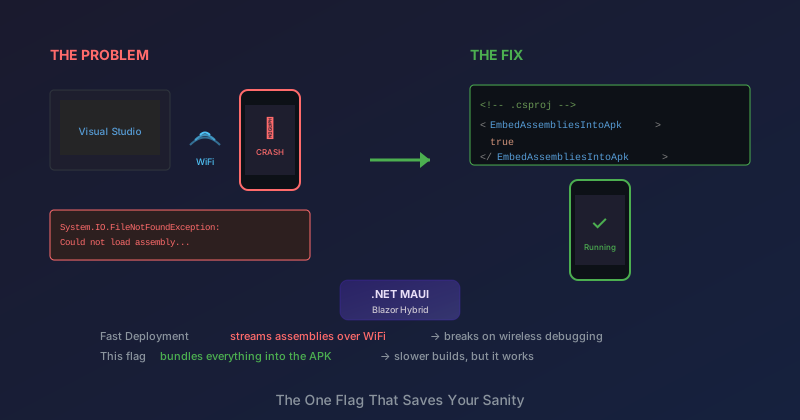
Visual Studio sees the device. You deploy. The app icon appears on the phone. You tap it. The splash screen flashes for a split second, and the app closes. No crash dialog, no logcat errors that make sense. Just an immediate exit.
If you run adb logcat and filter for your app, you might see something cryptic about assemblies not being found.
The Cause: Fast Deployment
MAUI's Debug builds use a feature called Fast Deployment by default. Instead of embedding all your .NET assemblies into the APK, Fast Deployment:
- Installs a small "shell" APK to the device
- Pushes assemblies to a device-specific location via
adb push - The app loads assemblies from that location at runtime
This makes deployment faster because you're not rebuilding a full APK every time. Only changed assemblies get pushed.
The catch: Fast Deployment requires an active adb connection that can push files. When you deploy via USB cable through Visual Studio, this works seamlessly. But with wireless debugging, there's a subtlety.
When you use adb connect for wireless debugging, adb maintains the connection. But if the connection drops (phone sleeps, WiFi hiccup, timeout), the assemblies are no longer accessible. The shell APK tries to load them, finds nothing, and crashes.
Even worse: if you install a Debug APK via adb install (without going through Visual Studio's deployment), the assemblies never get pushed at all. The APK is on the device, but it's an empty shell.
The Fix: Always Embed Assemblies
Add this to your .csproj:
<PropertyGroup Condition="'$(Configuration)' == 'Debug'">
    <!-- Always embed assemblies for reliable wireless debugging -->
    <EmbedAssembliesIntoApk>true</EmbedAssembliesIntoApk>
    <AndroidFastDeploymentType>None</AndroidFastDeploymentType>
</PropertyGroup>
This tells MAUI to embed all assemblies directly in the APK, just like a Release build. The APK is self-contained and doesn't depend on a separate assembly push.
The Tradeoff
Fast Deployment exists for a reason: rebuild times. With assemblies embedded, every deployment rebuilds the full APK. On a large project, this can add 30-60 seconds per deploy.
But for wireless debugging, this is the right tradeoff. A 60-second deploy that works is better than a 30-second deploy that crashes.
If you frequently switch between USB and wireless, you could use a conditional property:
<!-- Use when deploying wirelessly -->
<EmbedAssembliesIntoApk Condition="'$(Configuration)' == 'Debug' AND '$(WirelessDebug)' == 'true'">true</EmbedAssembliesIntoApk>
Then deploy with:
dotnet build -c Debug -f net10.0-android -p:WirelessDebug=true -t:Install
But honestly, I just set it to always embed. The extra 30 seconds per deploy is worth never hitting this crash again.
The VS Code Bonus: File Watcher Exclusions
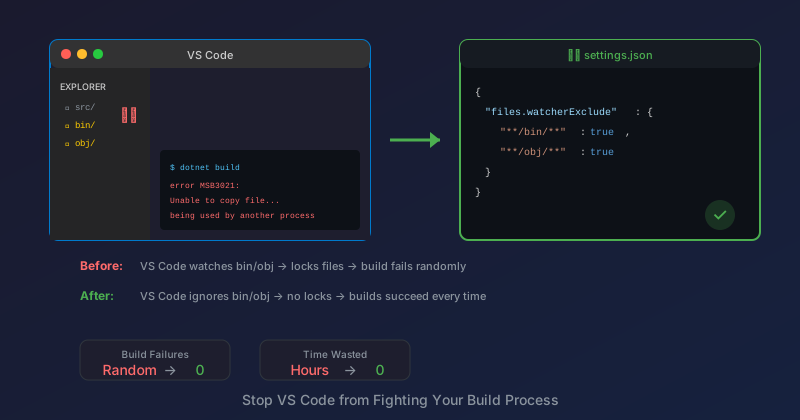
While debugging this, I hit another issue: build errors claiming files were locked. VS Code was watching the bin/ and obj/ folders, which interfered with the build process.
Add this to .vscode/settings.json:
{
    "files.watcherExclude": {
        "**/bin/**": true,
        "**/obj/**": true
    }
}
This tells VS Code to ignore changes in build output folders, preventing file lock conflicts.
How to Verify
After making the change, rebuild and check the APK size:
dotnet build -c Debug -f net10.0-android

# Check the APK size
ls -la bin/Debug/net10.0-android/*.apk
With Fast Deployment, the APK is small (maybe 5-10 MB). With assemblies embedded, it's much larger (50+ MB for a typical MAUI app). The larger size confirms assemblies are included.
You can also use aapt to inspect the APK:
aapt list bin/Debug/net10.0-android/*-Signed.apk | grep assemblies
You should see a list of .dll files inside the APK.
Install via ADB
With assemblies embedded, you can install directly via adb without Visual Studio:
adb install -r bin/Debug/net10.0-android/com.yourcompany.yourapp-Signed.apk
The -r flag replaces an existing installation. This is useful for quick testing when you don't want to go through Visual Studio's deployment workflow.
Why This Isn't the Default
Microsoft made Fast Deployment the default because the typical development workflow assumes:
- You're connected via USB
- You're deploying through Visual Studio
- You're iterating rapidly on code changes
Wireless debugging is less common, and the assumption is that developers who use it understand the implications.
But as wireless debugging becomes more popular (and USB-C ports become more precious), this default may be worth revisiting.
Summary
| Deployment Method | Fast Deployment | Embedded Assemblies |
|---|---|---|
| USB via Visual Studio | Works | Works |
| Wireless via Visual Studio | Usually works | Works |
adb install of Debug APK |
Crashes | Works |
| Disconnected device | Crashes | Works |
If you're doing any wireless debugging, just embed the assemblies. The build time cost is worth the reliability.
<EmbedAssembliesIntoApk Condition="'$(Configuration)' == 'Debug'">true</EmbedAssembliesIntoApk>
<AndroidFastDeploymentType Condition="'$(Configuration)' == 'Debug'">None</AndroidFastDeploymentType>
Two lines of XML to save hours of confusion.
The error message ("No assemblies found") doesn't clearly indicate that Fast Deployment is the problem. If you're hitting a crash-on-launch that only happens with wireless debugging, check this first.
Related Posts
- The Pending Count That Wouldn't Stay — Another MAUI debugging deep dive
- MAUI Blazor NavigationManager Not Initialized — More MAUI timing gotchas