Two days ago I wrote a whole post about SEO best practices. Meta tags, Open Graph, JSON-LD structured data, sitemaps, robots.txt—I covered it all. The technical foundation was solid. I was proud of it.
Then I Googled "Learned Geek."
My site wasn't on the first page. It wasn't on the second page. It wasn't anywhere. A site:learnedgeek.com search—which should show every indexed page—returned zero results.
I had done everything right. Except for one thing: I never told Google my site existed.
The Assumption That Burned Me
Here's what I assumed: if I build a site with proper SEO markup and a sitemap, Google will eventually find it. Crawlers crawl, right? That's their job.
Technically true. But "eventually" can mean months. Google discovers new sites primarily through:
- Links from other sites — If nobody links to you, you're invisible
- Google Search Console submissions — Explicitly telling Google you exist
- Random crawling — Which may never happen for a new domain
My site had no inbound links. I hadn't submitted to Search Console. I was waiting for Option 3, which is like waiting to be discovered by a talent scout while sitting alone in your apartment.
What Google Search Console Actually Does
Google Search Console is Google's free tool for site owners. It lets you:
- Verify you own your site — Prove you control the domain
- Submit your sitemap — Hand Google a list of all your pages
- Request indexing — Jump the queue for specific URLs
- Monitor performance — See what queries lead to your site
- Identify issues — Find crawl errors, mobile usability problems, etc.
It's not optional. It's table stakes for anyone who wants their site to appear in search results within a reasonable timeframe.
Step 1: Add Your Property
Go to Google Search Console and click "Add property."
You'll choose between:
- Domain — Covers all subdomains and protocols (recommended)
- URL prefix — Just one specific URL pattern
For most sites, "URL prefix" with https://yoursite.com is fine. Enter your URL and proceed.
Step 2: Verify Ownership
Google needs to confirm you actually own this domain. They offer several methods:
HTML File Upload (Easiest)
Google gives you a file like google1555381eb091c8f3.html with specific contents:
google-site-verification: google1555381eb091c8f3.html
Upload this to your site's root directory (wwwroot in ASP.NET Core). Once deployed, the file should be accessible at https://yoursite.com/google1555381eb091c8f3.html.
Click "Verify." Done.
DNS TXT Record (For Cloudflare Users)
If you're using Cloudflare (or any DNS provider with an API), this is clean:
- Google gives you a TXT record value
- Add it to your DNS as a TXT record for
@(root domain) - Wait a few minutes for propagation
- Click "Verify"
Other Methods
- HTML meta tag — Add a
<meta>tag to your homepage - Google Analytics — If you have GA installed
- Google Tag Manager — If you use GTM
Pick whatever's easiest for your setup. The HTML file method requires no DNS changes and works everywhere.
Step 3: Submit Your Sitemap
Once verified, go to Sitemaps in the left sidebar.
Enter your sitemap URL (usually sitemap.xml) and click "Submit."
Google will fetch your sitemap and discover all the pages you've listed. This is infinitely faster than waiting for random crawling.
If your sitemap is dynamically generated (like mine), it automatically stays current. Here's the controller I use:
[Route("sitemap.xml")]
public async Task<IActionResult> Sitemap()
{
    var posts = await _blogService.GetAllPostsAsync();

    // Build XML with all pages and posts...

    return Content(xml, "application/xml");
}
Every new blog post automatically appears in the sitemap, which Google periodically re-fetches.
Step 4: Request Indexing (The Magic Button)
Here's the part that changed everything for me.
Go to URL Inspection in the left sidebar. Enter your homepage URL and press Enter.
You'll likely see: "URL is not on Google."
Click Request Indexing.
That's it. You just told Google "please crawl this page now." It gets added to a priority queue, and within hours to days, your page appears in search results.
Do this for your most important pages:
- Homepage
- Blog index
- Key landing pages
- Your best content
You can only request indexing for so many URLs per day (there's a quota), so prioritize.
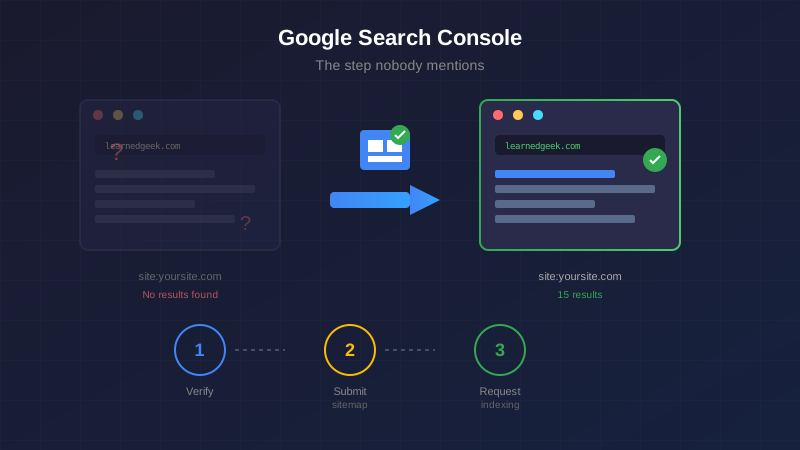
The Before and After
Before Search Console:
site:learnedgeek.com
→ No results found
After requesting indexing:
site:learnedgeek.com
→ 15 results (and growing)
The difference was about 48 hours.
What Happens Next
Once Google starts indexing your site, Search Console becomes a monitoring tool:
Performance Report
See which queries your site appears for, your average position, click-through rates, and impressions. This is gold for understanding what content resonates.
Coverage Report
Shows which pages are indexed, which have errors, and which are excluded (and why). If Google can't crawl a page, you'll find out here.
Core Web Vitals
Performance metrics that affect ranking. If your site is slow or has layout shifts, this report tells you.
Links Report
Shows who's linking to you (external links) and your internal linking structure. Backlinks are still a major ranking factor.
The Complete SEO Checklist (Updated)
My original SEO post covered the technical implementation. Here's the complete picture:
Technical Setup (Do Once)
- Unique title tags per page
- Meta descriptions for all pages
- Open Graph tags for social sharing
- JSON-LD structured data for articles
- Dynamic sitemap at
/sitemap.xml - robots.txt allowing crawling
- HTTPS everywhere
- Mobile-responsive design
Google Search Console (Do Once, Then Monitor)
- Create Search Console account
- Add your property
- Verify ownership (HTML file or DNS)
- Submit your sitemap
- Request indexing for key pages
Ongoing
- Write useful content (the hard part)
- Monitor Search Console for issues
- Build backlinks through sharing and outreach
- Keep site fast and mobile-friendly
Common Gotchas
"Couldn't fetch" error when verifying Your verification file isn't accessible. Check that it's deployed and the URL returns the expected content.
Sitemap submitted but "Couldn't fetch" Your sitemap URL might be wrong, or it's returning HTML instead of XML. Test by visiting the URL directly.
"URL is not on Google" after requesting indexing It takes time. Hours to days, sometimes longer for new sites. Be patient, or check for crawl errors in the Coverage report.
Pages indexed but not ranking That's content SEO, not technical SEO. Your pages are in the index; now you need them to be good enough to rank. Focus on quality, backlinks, and user engagement.
What I Learned
- SEO implementation isn't SEO visibility — You can have perfect meta tags and still be invisible if Google doesn't know you exist
- Search Console is not optional — It's the difference between "eventually" and "this week"
- Request Indexing is powerful — For new content or important pages, don't wait for Google to discover them
- Sitemaps are a conversation — You're telling Google what exists; Search Console tells you what they actually indexed
The technical SEO I wrote about before? It's still essential. But it's like building a beautiful store on a street with no signs pointing to it. Search Console puts up the signs.
The Takeaway
If you've built a site and can't find it on Google, don't panic. Don't assume your SEO is broken. Don't rewrite all your meta tags.
First, ask yourself: Did I tell Google it exists?
If the answer is no, you have about 10 minutes of work ahead of you. And then you wait. But at least you're waiting in line instead of standing outside the building.
This post exists because I made the mistake so you don't have to. Got questions about Search Console? Drop a comment below.