The Problem With Browser-Based Language Detection
So you've got localization working. Your resource files are loading, your translations are appearing, and everything looks great—as long as your users have their browser language set correctly.
But here's the thing about browser language settings: nobody knows where they are.
Go ahead, try to find yours right now. I'll wait.
...
Still looking? That's the problem. Asking users to dig through chrome://settings/languages or whatever Firefox calls its version isn't a solution. It's an admission of defeat.
What users actually want is a dropdown somewhere on your site. Click "Español," and suddenly everything's in Spanish. Come back tomorrow, still Spanish. No browser settings required.
Let's build that.
How .NET Decides Which Language to Use
Before we add a language switcher, it helps to understand how .NET picks a culture in the first place. When a request comes in, the RequestLocalizationMiddleware checks a series of "culture providers" in order:
- QueryStringRequestCultureProvider — Is there a
?culture=es-ESin the URL? - CookieRequestCultureProvider — Is there a culture cookie?
- AcceptLanguageHeaderRequestCultureProvider — What does the browser's
Accept-Languageheader say?
The first provider that returns a valid culture wins. If nothing matches, it falls back to your default.
This ordering is actually perfect for a language switcher. We just need to:
- Let users pick a language
- Store their choice in a cookie
- Let the cookie provider do the rest
The middleware will see the cookie, use that culture, and ignore what the browser says. Exactly what we want.
Step 1: The Language Switching Endpoint
We need a simple endpoint that takes a language code, drops a cookie, and sends the user back where they came from. Here's a controller action that does exactly that:
using Microsoft.AspNetCore.Localization;
using Microsoft.AspNetCore.Mvc;

public class CultureController : Controller
{
    [HttpPost]
    public IActionResult SetCulture(string culture, string returnUrl)
    {
        // Create the culture cookie using .NET's built-in format
        Response.Cookies.Append(
            CookieRequestCultureProvider.DefaultCookieName,
            CookieRequestCultureProvider.MakeCookieValue(new RequestCulture(culture)),
            new CookieOptions
            {
                Expires = DateTimeOffset.UtcNow.AddYears(1),
                IsEssential = true  // Important for GDPR cookie consent
            }
        );

        // Send them back where they came from
        return LocalRedirect(returnUrl ?? "/");
    }
}
A few things to note here:
CookieRequestCultureProvider.DefaultCookieName — This is .AspNetCore.Culture. You could use any cookie name, but using the default means the built-in middleware knows exactly where to look without extra configuration.
MakeCookieValue — This formats the culture into the specific string format .NET expects: c=es-ES|uic=es-ES. You could build this string yourself, but why risk a typo?
LocalRedirect — This is safer than Redirect because it only allows redirects within your own site. If someone passes a malicious URL, it'll throw an exception instead of sending users to a phishing site.
IsEssential = true — This tells GDPR cookie consent systems that this cookie is necessary for the site to function, not just for tracking.
Step 2: Making Sure the Cookie Provider Works
Your Program.cs needs to configure the localization middleware to actually check for cookies. Here's the setup:
var supportedCultures = new[] { "en-US", "es-ES", "fr-FR" };

var localizationOptions = new RequestLocalizationOptions()
    .SetDefaultCulture(supportedCultures[0])
    .AddSupportedCultures(supportedCultures)
    .AddSupportedUICultures(supportedCultures);

// The default provider order is:
// 1. QueryString  (?culture=xx)
// 2. Cookie       (.AspNetCore.Culture)
// 3. AcceptLanguage (browser header)
//
// This is usually what you want. If you need to change it:
// localizationOptions.RequestCultureProviders.Insert(0, new CookieRequestCultureProvider());

app.UseRequestLocalization(localizationOptions);
By default, the cookie provider is already second in line—after query strings, before browser headers. That's usually the right priority:
- Query strings let you override temporarily (useful for testing)
- Cookies persist the user's explicit choice
- Browser headers are the fallback for first-time visitors
Step 3: The Language Dropdown UI
Now we need a way for users to actually pick a language. A partial view works well since you'll probably want this in your header or footer across all pages:
_LanguageSwitcher.cshtml:
@using Microsoft.AspNetCore.Builder
@using Microsoft.AspNetCore.Localization
@using Microsoft.Extensions.Options

@inject IOptions<RequestLocalizationOptions> LocalizationOptions

@{
    var requestCulture = Context.Features.Get<IRequestCultureFeature>();
    var currentCulture = requestCulture?.RequestCulture.UICulture.Name ?? "en-US";
    var returnUrl = Context.Request.Path + Context.Request.QueryString;

    // Map culture codes to display names
    var cultureNames = new Dictionary<string, string>
    {
        { "en-US", "English" },
        { "es-ES", "Español" },
        { "fr-FR", "Français" }
    };

    var supportedCultures = LocalizationOptions.Value.SupportedUICultures?
        .Select(c => c.Name)
        .ToList() ?? new List<string> { "en-US" };
}

<form asp-controller="Culture" asp-action="SetCulture" method="post" class="inline">
    <input type="hidden" name="returnUrl" value="@returnUrl" />
    <select name="culture"
            onchange="this.form.submit()"
            class="bg-transparent border border-neutral-300 rounded px-2 py-1 text-sm">
        @foreach (var culture in supportedCultures)
        {
            var displayName = cultureNames.GetValueOrDefault(culture, culture);
            var isSelected = culture == currentCulture;
            <option value="@culture" selected="@isSelected">@displayName</option>
        }
    </select>
</form>
Then include it in your _Layout.cshtml:
<nav>
    <!-- Your navigation links -->
    <partial name="_LanguageSwitcher" />
</nav>
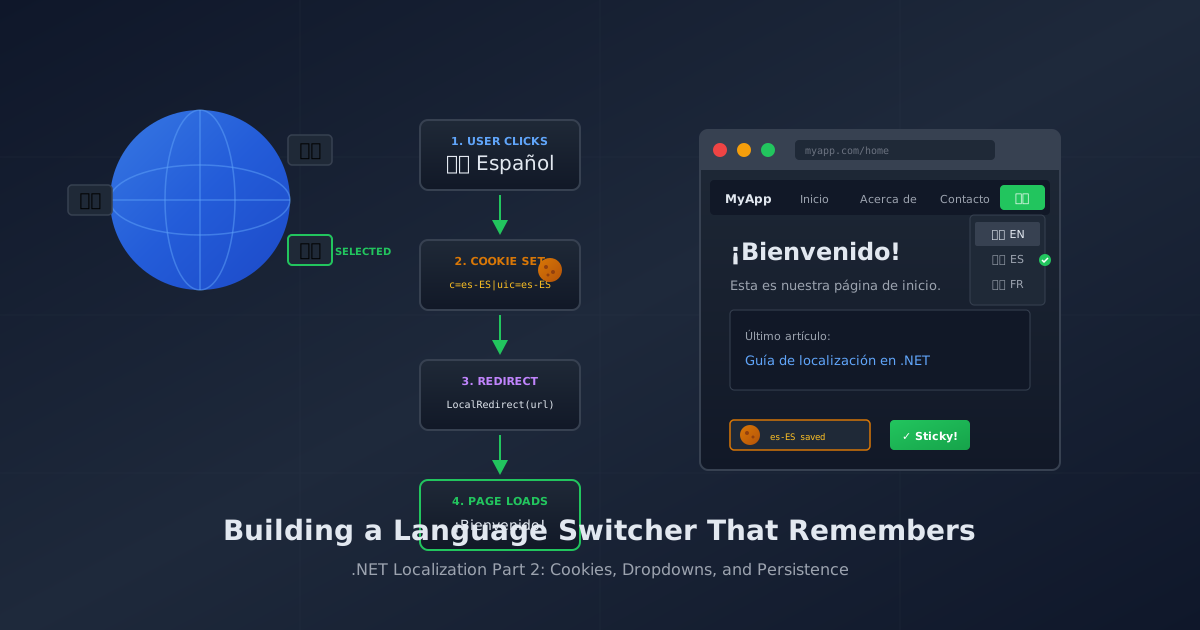
When someone selects a new language:
- The
onchangeevent submits the form - The
SetCultureaction receives the culture code - A cookie gets set with that culture
- The user is redirected back to their current page
- On the redirect, the middleware sees the cookie and applies that culture
- The page renders in the new language
All of this happens in a single click-and-refresh cycle.
How the Cookie Actually Works
Let's peek under the hood. When someone selects Spanish, the cookie that gets set looks like this:
Name:  .AspNetCore.Culture
Value: c=es-ES|uic=es-ES
Path:  /
Expires: (one year from now)
The value contains two parts:
c=es-ES— The "culture" (affects number formatting, dates, etc.)uic=es-ES— The "UI culture" (affects which resource files are loaded)
Usually these are the same, but they can differ. You might want Spanish translations (uic=es-ES) but US date formats (c=en-US). For most apps, keeping them in sync is fine.
On subsequent requests, the middleware:
- Sees the
.AspNetCore.Culturecookie - Parses out
es-ES - Sets
CultureInfo.CurrentCultureandCultureInfo.CurrentUICulture - Your localizers now know to grab Spanish strings
The user doesn't have to do anything. The cookie persists across browser sessions, survives closing the tab, and just... works.
A Fancier Alternative: Flags and Icons
A dropdown works, but flag icons or language names can look nicer. Here's a more visual approach:
@{
    var cultures = new[]
    {
        (Code: "en-US", Name: "English", Flag: "🇺🇸"),
        (Code: "es-ES", Name: "Español", Flag: "🇪🇸"),
        (Code: "fr-FR", Name: "Français", Flag: "🇫🇷")
    };
}

<div class="flex gap-2">
    @foreach (var (code, name, flag) in cultures)
    {
        var isActive = code == currentCulture;
        <form asp-controller="Culture" asp-action="SetCulture" method="post" class="inline">
            <input type="hidden" name="culture" value="@code" />
            <input type="hidden" name="returnUrl" value="@returnUrl" />
            <button type="submit"
                    title="@name"
                    class="text-xl @(isActive ? "opacity-100" : "opacity-50 hover:opacity-75")">
                @flag
            </button>
        </form>
    }
</div>
Now users see a row of flag emojis, click one, and the language switches. The current language's flag is fully opaque while others are dimmed.
Edge Cases and Gotchas
What if someone clears their cookies? They'll fall back to browser language detection on their next visit. Not ideal, but not broken either.
What about SEO and different URLs per language?
Cookie-based switching means all languages live at the same URLs. This is fine for apps but not great for content sites where you want /es/about indexed separately from /about. That's a different pattern involving route-based localization.
What if the user picks a culture I don't support?
The SetCulture action should validate against your supported cultures list:
var supported = new[] { "en-US", "es-ES", "fr-FR" };
if (!supported.Contains(culture))
{
    culture = "en-US"; // Fallback to default
}
Does this work with caching?
Be careful with output caching. If you cache a Spanish page and serve it to English users, you'll have problems. Use VaryByCookie or disable caching on localized content.
Wrapping Up
The language switcher pattern is elegant because it works with .NET's localization system instead of around it. You're not doing anything hacky—you're just:
- Setting a cookie that .NET already knows to look for
- Letting the middleware do what it was designed to do
- Redirecting so the new culture takes effect immediately
Once it's set up, users get a one-click language switch that remembers their choice forever (or at least until they clear their cookies). No browser settings, no URL parameters, no friction.
And the best part? You can test it by clicking a dropdown instead of digging through chrome://settings/languages.
This post is part of a series on .NET localization. See also: Resource Files and Why They're Not Loading on the addressing system, namespace alignment, and debugging when translations don't appear.
Having trouble getting the cookie to stick? Double-check that your middleware order is correct—UseRequestLocalization() needs to come before UseRouting(). See Part 1 for the full debugging checklist.