The Uncomfortable Truth About Your Test Suite
Here's a confession: I used to write tests like I floss—sporadically, with guilt, and usually right before something important (a dentist appointment, a production deployment). The tests existed. They passed. I felt virtuous.
Then I discovered code coverage metrics.
Turns out, my lovingly crafted test suite covered about 23% of my actual code. The other 77%? Living dangerously, one null reference away from chaos. My tests were the software equivalent of locking the front door while leaving every window wide open.
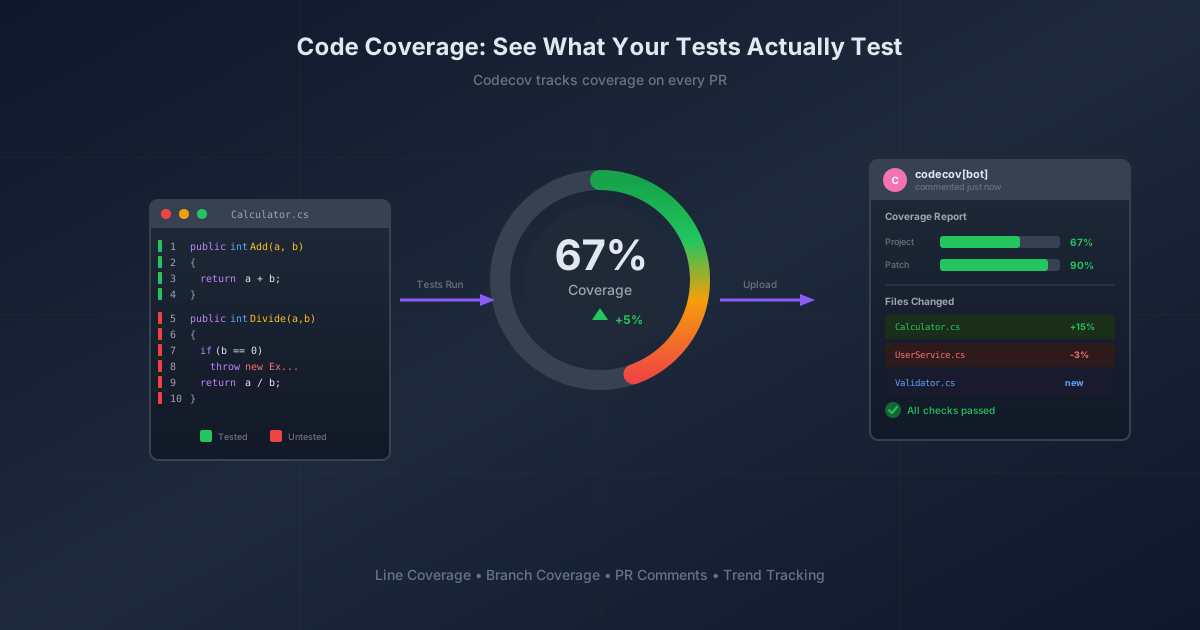
Enter Codecov—a tool that politely but firmly shows you exactly how much of your code is actually being tested. It's like a fitness tracker for your codebase, except instead of guilt-tripping you about steps, it guilt-trips you about untested edge cases.
What Even Is Code Coverage?
Before we dive in, let's demystify the concept. Code coverage measures what percentage of your code actually executes when your tests run. There are several flavors:
| Coverage Type | What It Measures | The Analogy |
|---|---|---|
| Line Coverage | Which lines of code were executed | Did you walk through every room? |
| Branch Coverage | Which if/else paths were taken |
Did you check both doors? |
| Function Coverage | Which functions were called | Did you use all the appliances? |
| Statement Coverage | Which statements ran | Did you flip every switch? |
A test suite with 100% line coverage but 0% branch coverage is like saying "I tested the happy path and called it a day." Spoiler: bugs love the unhappy path.
Why Codecov Specifically?
You could stare at coverage reports locally. I've done it. It's about as fun as reading assembly language for pleasure. Codecov solves the "nobody actually looks at this" problem by:
- Showing coverage diffs on every PR — Can't ignore it when it's right there in the review
- Tracking trends over time — Watch your coverage climb (or shame-spiral)
- Failing builds when coverage drops — Accountability through automation
- Pretty visualizations — Because we're all motivated by colors and graphs
The free tier covers public repositories and is generous enough for most projects. They're not going to shake you down for $49/month just to see a percentage.
Setting Up Codecov: The Actually Useful Guide
Step 1: Generate Coverage Reports
Your CI pipeline needs to produce coverage data. For .NET projects, this means adding the magic incantation to your test command:
dotnet test --collect:"XPlat Code Coverage" --results-directory ./coverage
This produces a coverage.cobertura.xml file—an industry-standard format that Codecov understands. Other ecosystems have their equivalents (Istanbul for JavaScript, Coverage.py for Python, etc.).
Step 2: Connect Codecov to Your Repository
- Visit codecov.io and sign in with GitHub/GitLab/Bitbucket
- Find your repository and click to activate it
- Copy the Repository Upload Token (a UUID that looks like
abc123de-f456-7890-ghij-klmnopqrstuv)
This token is how Codecov knows the coverage report belongs to your repo. Guard it like you would any secret—which brings us to...
Step 3: Store the Token Securely
Never commit secrets to source control. I cannot stress this enough. I've seen API keys in public repos. I've been the person who committed API keys to public repos. Learn from my shame.
For GitHub Actions, add the token as a repository secret:
- Go to your repo → Settings → Secrets and variables → Actions
- Click New repository secret
- Name it
CODECOV_TOKEN - Paste your token
- Click Add secret
Step 4: Update Your CI Workflow
Here's a complete GitHub Actions workflow that builds, tests, collects coverage, and uploads to Codecov:
name: .NET CI

on:
  push:
    branches: [ main, develop ]
  pull_request:
    branches: [ main ]

permissions:
  contents: read
  checks: write
  pull-requests: write

jobs:
  build-and-test:
    runs-on: ubuntu-latest

    steps:
    - uses: actions/checkout@v4

    - name: Setup .NET
      uses: actions/setup-dotnet@v4
      with:
        dotnet-version: '8.0.x'

    - name: Restore dependencies
      run: dotnet restore

    - name: Build
      run: dotnet build --configuration Release --no-restore

    - name: Run tests with coverage
      run: |
        dotnet test --configuration Release --no-build \
          --collect:"XPlat Code Coverage" \
          --results-directory ./coverage

    - name: Upload coverage to Codecov
      uses: codecov/codecov-action@v5
      with:
        token: ${{ secrets.CODECOV_TOKEN }}
        files: ./coverage/**/coverage.cobertura.xml
        fail_ci_if_error: false
        verbose: true
The key pieces:
--collect:"XPlat Code Coverage"generates the reportcodecov/codecov-action@v5handles the uploadfail_ci_if_error: falsemeans a Codecov hiccup won't break your build (you can set this totrueonce you trust it)
Step 5: Configure Codecov Behavior (Optional but Recommended)
Create a codecov.yml in your repository root to customize thresholds and behavior:
codecov:
  require_ci_to_pass: yes

coverage:
  precision: 2
  round: down
  range: "60...100"
  status:
    project:
      default:
        target: auto
        threshold: 5%
    patch:
      default:
        target: auto
        threshold: 5%

comment:
  layout: "reach,diff,flags,files,footer"
  behavior: default
  require_changes: no

ignore:
  - "**/Migrations/**"
  - "**/*.Designer.cs"
  - "**/*.g.cs"
  - "**/Tests/**"
What this does:
- Sets acceptable coverage range (60-100%)
- Allows 5% coverage drop before failing (because sometimes you refactor)
- Configures PR comments to show useful diffs
- Ignores auto-generated files that inflate or deflate metrics meaninglessly
Reading the Results
After your first successful upload, you'll see coverage data in three places:
1. The Codecov Dashboard
A visual breakdown of your entire codebase. Green files are well-tested. Red files are... opportunities for growth. The sunburst chart looks impressive in screenshots.
2. PR Comments
Every pull request gets a comment showing:
- Overall coverage change
- Which files improved or degraded
- Line-by-line annotations in the diff
This is where the magic happens. Reviewers can immediately see if new code is tested.
3. Status Checks
Codecov can block PRs that drop coverage below your threshold. This is controversial—some teams love the accountability, others find it pedantic. Start permissive and tighten as your coverage improves.
The "But My Coverage Is Embarrassingly Low" Problem
If you're starting from 15% coverage, don't panic. Here's the realistic path forward:
- Set your threshold below current coverage — You can't fail every build
- Require patch coverage — New code must be tested, even if old code isn't
- Focus on critical paths first — Authentication, payment processing, data validation
- Celebrate small wins — Going from 15% to 25% is meaningful progress
Rome wasn't tested in a day. Neither will your legacy codebase be.
Common Gotchas
"Coverage report not found"
- Check that your test command actually produces
coverage.cobertura.xml - Verify the
filespath in your workflow matches where reports are generated
"Token is invalid"
- Double-check you copied the full token
- Ensure the secret name matches exactly (
CODECOV_TOKENis case-sensitive)
"Coverage seems wrong"
- Make sure you're not running tests in parallel in a way that fragments reports
- Check your
ignorepatterns aren't excluding actual source files
"My coverage dropped but I added tests"
- You probably added more code than tests. The ratio matters.
- Check if new files are being included that weren't before
Is 100% Coverage Worth It?
Hot take: No.
Chasing 100% coverage leads to testing implementation details, writing brittle tests, and spending hours covering code paths that can't realistically fail. Aim for meaningful coverage of business logic, edge cases, and integration points.
80% coverage with thoughtful tests beats 100% coverage with Assert.True(true) padding.
Wrapping Up
Codecov won't write your tests for you. It won't fix your bugs. What it will do is make coverage visible, trackable, and impossible to ignore. And sometimes, that's exactly the nudge we need.
Start with your next PR. Add a test. Watch the number go up. Feel the dopamine. Repeat.
Your future self—debugging at 2 AM—will thank you.
This post is part of a series on code coverage. See also: Codecov Error State Debugging on what to do when uploads succeed but processing fails (spoiler: delete your config file).
Found this helpful? Have questions about coverage strategies? Drop a comment below or find me on GitHub. I promise my code coverage is now above 23%.