I forgot the password to my Raspberry Pi. The Pi runs headless (no monitor or keyboard attached), so I couldn't just boot into recovery mode and type at a prompt. After trying several approaches, I found there's an easy way and a hard way to solve this.
The Easy Way: userconf.txt
Raspberry Pi OS supports a userconf.txt file on the boot partition that resets (or creates) a user with a specified password. This is the method to try first.
Step 1: Generate a Password Hash
You need an encrypted hash, not the plain password. In WSL or any Linux terminal:
openssl passwd -6
Enter your desired password when prompted. It outputs something like:
$6$randomsalt$longhashstring...
Copy the entire line.
Step 2: Create userconf.txt
Insert the SD card into your Windows PC. Open the boot partition (the FAT32 one that Windows can read) and create a file named exactly userconf.txt.
Contents (single line, no quotes):
username:$6$randomsalt$longhashstring...
Replace username with your actual username (e.g., pi or whatever you set up).
Step 3: Enable SSH (if needed)
While you're on the boot partition, create an empty file named ssh (no extension). This enables SSH on boot.
Step 4: Boot and Log In
Put the SD card back in the Pi and power on. On first boot, Raspberry Pi OS:
- Reads
userconf.txt - Resets that user's password
- Deletes the file automatically
SSH in with your new credentials:
ssh [email protected]
This method works because the boot partition is FAT32 - Windows can read and write to it without special tools.
The Failed Attempts
Before discovering userconf.txt, I tried other approaches that didn't work for my headless setup:
cmdline.txt with init=/bin/sh
The idea: add init=/bin/sh to the end of /boot/cmdline.txt. The Pi boots to a root shell where you can run:
mount -o remount,rw /
passwd pi
sync
Then remove the init=/bin/sh flag and reboot normally.
Why it failed: This drops to a root shell on the console - meaning you need a monitor and keyboard attached. For a headless Pi, this doesn't help.
Direct SD Card Mount on Windows
Windows doesn't natively support ext4 (Linux filesystem). The SD card has two partitions:
- boot - FAT32, Windows can read it
- rootfs - ext4, Windows shows "You need to format this disk"
Third-party tools like Ext2Fsd exist but often fail on Windows 11 with driver signing issues.
The Hard Way: WSL and Disk Images
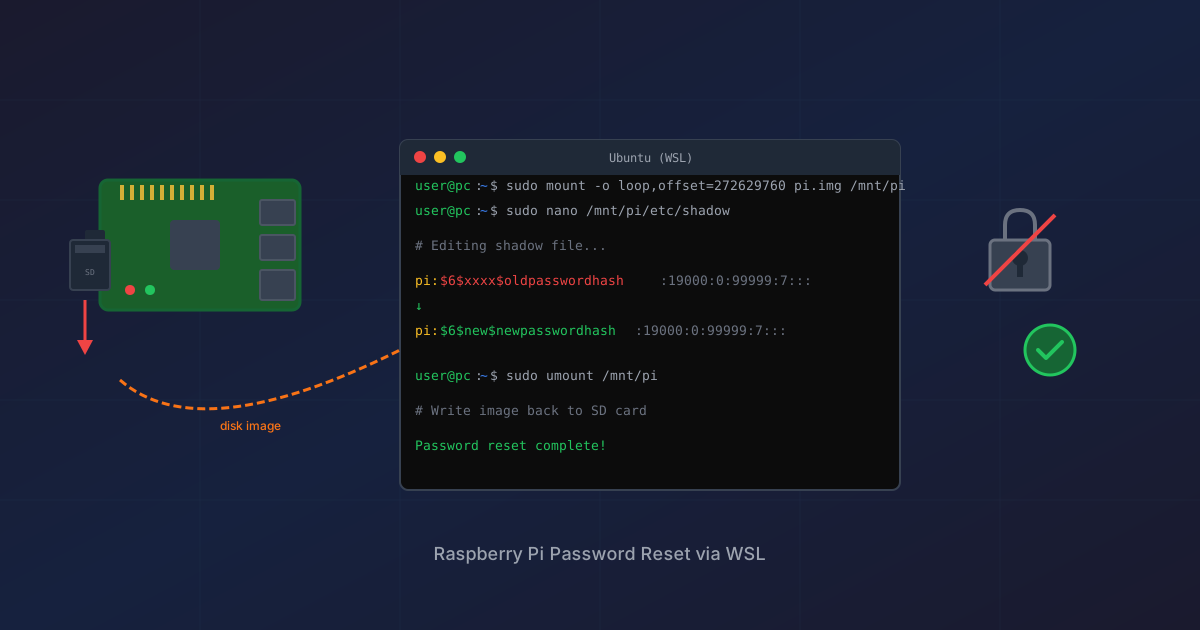
When userconf.txt isn't an option (perhaps you need to recover files, not just reset a password), you can mount the entire SD card as a disk image in WSL.
Step 1: Create a Disk Image
Use Win32 Disk Imager:
- Insert the SD card
- Open Win32 Disk Imager as Administrator
- Select the SD card device (verify it's the right one)
- Choose an output path (e.g.,
C:\temp\pi-backup.img) - Click "Read"
This creates a bit-for-bit copy including all partitions.
Step 2: Find the Partition Offset
In WSL:
fdisk -l /mnt/c/temp/pi-backup.img
Output shows partition layout:
Device                    Boot   Start      End  Sectors  Size Id Type
/mnt/c/temp/pi-backup.img1        8192   532479   524288  256M  c W95 FAT32 (LBA)
/mnt/c/temp/pi-backup.img2      532480 62333951 61801472 29.5G 83 Linux
The rootfs (Linux) partition starts at sector 532480. Calculate the byte offset:
532480 * 512 = 272629760
Step 3: Mount with Offset
sudo mkdir -p /mnt/piroot
sudo mount -o loop,offset=272629760 /mnt/c/temp/pi-backup.img /mnt/piroot
Now /mnt/piroot contains the Pi's filesystem.
Step 4: Edit the Shadow File
Generate a new password hash:
openssl passwd -6 -salt $(openssl rand -base64 8) "yournewpassword"
Edit the shadow file:
sudo nano /mnt/piroot/etc/shadow
Find your user's line and replace the hash (between the first two colons after the username):
pi:$6$oldhash...:19000:0:99999:7:::
becomes:
pi:$6$newhash...:19000:0:99999:7:::
Step 5: Unmount and Write Back
sudo umount /mnt/piroot
Back in Windows, use Win32 Disk Imager to write the modified image back to the SD card.
Which Method to Use
| Scenario | Method |
|---|---|
| Just need to reset password | userconf.txt |
| Need to recover/edit files on ext4 partition | WSL + disk image |
| Have monitor/keyboard available | cmdline.txt with init=/bin/sh |
The userconf.txt approach takes 5 minutes. The WSL approach takes 30+ minutes (mostly waiting for image read/write) but gives you full filesystem access.
Lessons Learned
- userconf.txt is the intended recovery method - Raspberry Pi OS supports it specifically for this scenario
- The boot partition is always accessible - FAT32 works on any OS
- WSL can mount disk images - useful when you need full filesystem access
- Back up your Pi - periodic SD card images save headaches
- Write down passwords - or use a password manager
The new password I set? raspberry. Sometimes the default is the default for a reason.