I'm a programmer, not a network administrator. But when you host your own domain, email configuration eventually comes knocking. This post documents everything I learned setting up authenticated email for my SmarterASP.NET hosted domain while using Cloudflare for DNS.
The Problem: Email is Built on Trust (And Lies)
Email was designed in the 1970s when the internet was a small network of trusted academics. The original protocol (SMTP) has no built-in way to verify that an email actually came from who it claims to be from. Anyone can send an email claiming to be [email protected].
This is why email authentication exists: SPF, DKIM, and DMARC are layers added on top of SMTP to prove emails are legitimate. Without them, your emails may land in spam folders—or worse, scammers can send emails pretending to be you.
The DNS Reality: Who's Actually In Charge?
Before touching email settings, you need to understand a critical question: Where are your authoritative nameservers?
When someone looks up mail.yourdomain.com, DNS servers around the world need to know who to ask. This is determined by the NS (nameserver) records at your domain registrar.
In my case:
- Domain registered at SmarterASP.NET
- Nameservers pointed to Cloudflare (
elle.ns.cloudflare.com,arvind.ns.cloudflare.com) - SmarterASP also has a DNS Manager panel
Here's the gotcha: SmarterASP's DNS Manager is completely ignored when Cloudflare is your nameserver. Any records you add there do nothing. All DNS records must go in Cloudflare.
I originally added email records to both places out of confusion. Don't make that mistake—pick one authoritative source (in my case, Cloudflare) and put everything there.
The Four Records You Need (And Why)
1. MX Record — "Where Should Mail Go?"
Type: MX
Name: @ (or yourdomain.com)
Value: igw18.site4now.net
Priority: 10
What it does: When someone sends email to [email protected], their mail server asks "where do I deliver this?" The MX (Mail eXchanger) record answers: "Send it to this server."
Why the priority number? You can have multiple MX records with different priorities for redundancy. Lower numbers = higher priority. If priority 10 fails, try priority 20, etc.
SmarterASP specifics: Your MX server will be something like igw##.site4now.net where ## varies by account. Find yours in the Email Manager panel.
2. SPF Record — "Who's Allowed to Send As Me?"
Type: TXT
Name: @ (or yourdomain.com)
Value: v=spf1 a mx include:_spf.site4now.net -all
What it does: SPF (Sender Policy Framework) publishes a list of servers authorized to send email for your domain. When Gmail receives an email "from" your domain, it checks: "Did this come from an authorized server?"
Breaking down the value:
v=spf1— Version identifiera— The server at your domain's A record can sendmx— Your mail servers (from MX record) can sendinclude:_spf.site4now.net— Also trust whatever SmarterASP's SPF says-all— Reject everything else (use~allfor "soft fail" during testing)
Why it matters: Without SPF, anyone can send email claiming to be from your domain. With SPF, receiving servers can verify the sending server is authorized.
3. DKIM Record — "This Email Hasn't Been Tampered With"
Type: TXT
Name: [selector]._domainkey (e.g., 8de4a792251aa92._domainkey)
Value: v=DKIM1; k=rsa; h=sha256; p=MIIBIjANBgkq... [long public key]
What it does: DKIM (DomainKeys Identified Mail) adds a cryptographic signature to every email. Your mail server signs outgoing emails with a private key. The public key is published in DNS. Receiving servers verify the signature matches.
Why it matters: DKIM proves two things:
- The email really came from your domain (only you have the private key)
- The email wasn't modified in transit (signature would break)
The selector: That random-looking prefix (8de4a792251aa92) is a "selector" that lets you have multiple DKIM keys. Useful for key rotation or multiple mail services.
Generating DKIM in SmarterASP:
- Log into webmail as [email protected] (not a regular user)
- Go to Settings (gear icon) → Domain Settings
- Find Email Signing in the left menu
- Click to generate/enable DKIM
- Copy the TXT record name and value to Cloudflare
Reference: SmarterASP DKIM Setup Guide
4. DMARC Record — "What To Do With Failures"
Type: TXT
Name: _dmarc
Value: v=DMARC1;p=reject;pct=100;rua=mailto:[email protected]
What it does: DMARC (Domain-based Message Authentication, Reporting, and Conformance) ties SPF and DKIM together and tells receiving servers what to do when checks fail.
Breaking down the value:
v=DMARC1— Version identifierp=reject— Policy: reject emails that fail authenticationpct=100— Apply policy to 100% of emailsrua=mailto:...— Send aggregate reports to this address
Policy options:
p=none— Monitor only, don't reject anything (good for testing)p=quarantine— Send failures to spam folderp=reject— Reject failures outright (recommended once everything works)
Why it matters: DMARC is your enforcement policy. Without it, SPF and DKIM failures might be ignored. With p=reject, spoofed emails claiming to be from your domain get blocked.
About those DMARC reports: If you include rua=mailto:..., you'll receive XML reports from major email providers showing how your domain's emails are being handled. Useful for monitoring, but can be noisy. Remove this parameter if you don't want the reports.
5. Mail CNAME — "Where's the Webmail?"
Type: CNAME
Name: mail
Value: mail5018.site4now.net
What it does: This just creates a friendly mail.yourdomain.com address that points to SmarterASP's webmail server. Strictly for convenience when accessing webmail—not required for email to function.
The Complete Setup Process
Step 1: Enable Email in SmarterASP
- Log into SmarterASP control panel
- Go to EMAILS → Email Manager
- Activate email for your domain
- Note the server details provided (MX address, mail server, ports)
Step 2: Add DNS Records to Cloudflare
Add all five record types described above. For email-related records, ensure proxy status is DNS only (gray cloud), not proxied.
Step 3: Generate DKIM Key
- Access webmail:
https://mail####.site4now.net(your server) - Log in as [email protected]
- Navigate to Settings → Domain Settings → Email Signing
- Generate the DKIM key
- Add the TXT record to Cloudflare
Step 4: Create Email Users
Back in SmarterASP Email Manager:
- Click +Add Email User
- Create your primary account (e.g.,
[email protected]) - Optionally create aliases (e.g.,
hello@forwarding to your primary)
Step 5: Test Everything
Send an email FROM your new address TO a Gmail account. Check the headers for:
dkim=pass ✓
spf=pass  ✓
dmarc=pass ✓
If all three pass, you're golden. Your emails will reach inboxes, not spam folders.
What Success Looks Like
When I sent a test email from [email protected] to my Gmail, the authentication results showed:
Authentication-Results: mx.google.com;
   dkim=pass [email protected]
   spf=pass (domain designates 14.1.20.18 as permitted sender)
   dmarc=pass (p=REJECT sp=REJECT dis=NONE)
All three checks passed. The email landed in my inbox, not spam. And if anyone tries to spoof my domain, their emails get rejected.
Common Gotchas
"I added records but email still doesn't work"
- Are your nameservers pointing to Cloudflare? Then records must be IN Cloudflare, not SmarterASP's DNS panel.
- DNS propagation can take up to 48 hours (usually faster).
"DKIM is failing"
- Did you generate the key in SmarterMail's Domain Settings? The key must exist on the server AND in DNS.
- Make sure you copied the full public key value (it's long).
"I'm getting DMARC reports I don't want"
- Remove the
rua=mailto:...part from your DMARC record.
"SPF is failing"
- Verify the sending server IP matches what's authorized.
- Check that
include:_spf.site4now.netis in your SPF record.
"SSL connection to mail.mydomain.com fails"
- SmarterASP provides two server addresses:
mail.yourdomain.com— Works without SSL (ports 25, 8889)mail####.site4now.net— Works with SSL (ports 465, 587, 993, 995)
- The SSL certificate is issued to
mail####.site4now.net, not your CNAME - For any SSL/TLS connection, use the
site4now.netaddress
Email Client Settings (iPhone, Outlook, etc.)
If you want to check email on your phone or desktop client, use these settings:
Incoming Mail (IMAP):
| Setting | Value |
|---|---|
| Server | mail####.site4now.net (your specific server) |
| Port | 993 |
| Security | SSL/TLS |
| Username | [email protected] |
Outgoing Mail (SMTP):
| Setting | Value |
|---|---|
| Server | mail####.site4now.net (your specific server) |
| Port | 587 (or 465) |
| Security | SSL/TLS |
| Username | [email protected] |
Important: Don't use mail.yourdomain.com for client setup if you want SSL encryption (you do). Use the direct site4now.net server address from your SmarterASP Email Manager.
The Trust Chain
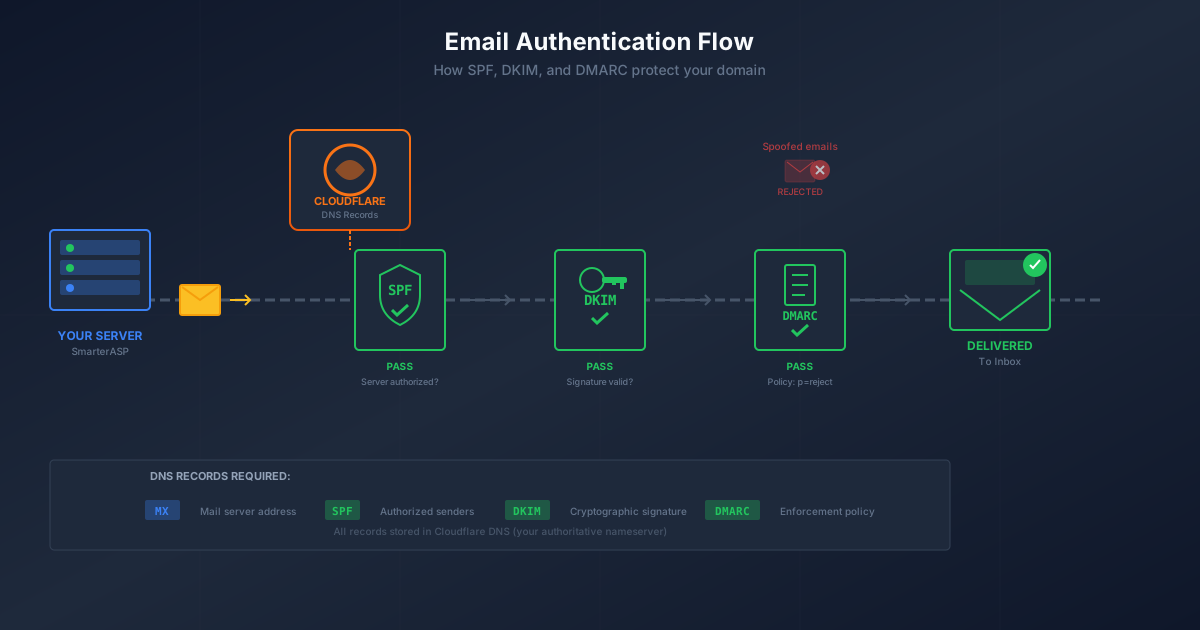
Here's how it all works together when Gmail receives your email:
- MX → Gmail knows to accept mail for your domain
- SPF → Gmail checks: "Is this server authorized?" ✓
- DKIM → Gmail verifies: "Is the signature valid?" ✓
- DMARC → Gmail confirms: "Both passed, and policy says accept" ✓
- Result → Email delivered to inbox
Without this chain, your email is just another unverified message from an untrusted source—exactly like spam.
Resources
- SmarterASP DKIM Setup Guide
- Cloudflare DNS Documentation
- Google's Email Authentication Guide
- MXToolbox — Test your email configuration
I host this site and several others on SmarterASP.NET. If you're looking for affordable ASP.NET hosting with solid email support, they've been reliable for me for years.