I designed my own business cards this weekend using Inkscape — a free, open-source tool.
I'd been avoiding online template wizards because they never felt right. So I figured, I work with SVGs all the time for my blog... why not just build the cards myself?
Turns out print design is a completely different world from web design.
Things I Had No Clue About Going In
Bleed margins — Your design has to extend past the cut line in case the trim is slightly off. Standard business cards are 3.5" × 2", but you design at 3.75" × 2.25" to account for the bleed.
Safe zones — Keep important stuff (text, logos) away from the edges. If it's within about 0.125" of the trim line, it might get cut off.
300 DPI vs 96 DPI — Screen resolution (96 DPI) looks terrible in print. Everything needs to be exported at 300 DPI minimum. I learned this the hard way when I saw my first PDF export and the logo looked fuzzy.
Spot UV finishing — This is where it got interesting. Spot UV (or "spot gloss") is a clear glossy coating applied to specific parts of the card. It's invisible when you look straight at the card, but catches light at an angle — and you can feel it when you run your finger across it.
To get spot UV, you need to provide the printer with a separate mask file — just the area you want glossy, in solid black on a white background. The printer overlays this mask on your main design and applies the gloss only where the black is.
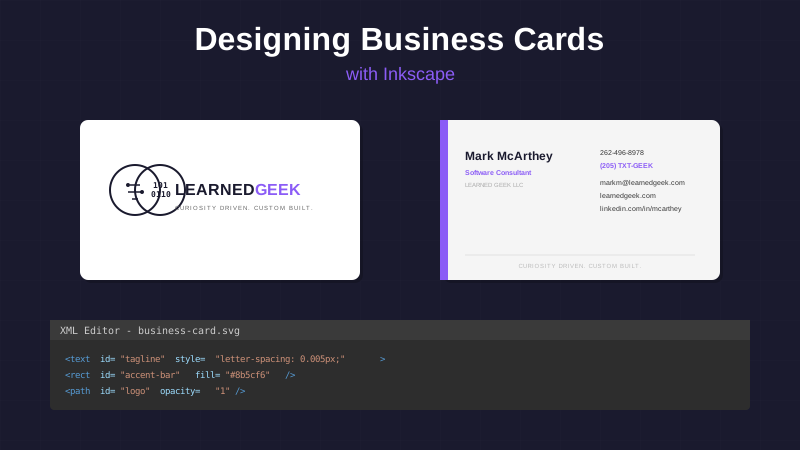
I ended up putting a raised spot gloss finish on the brain logo on the front of the card. Subtle, but tactile.
The XML Editor Surprise
The biggest workflow surprise was Inkscape's XML editor.
Being able to directly edit SVG attributes — opacity, letter-spacing, fill colors, node ordering — was faster than navigating menus. It felt like using browser DevTools, but for print design.
Need to adjust letter spacing on a tagline? Open the XML editor, find the <text> element, add letter-spacing: 0.005px; to the style attribute, done.
Want to remove the white background from an imported logo? Find the path with fill: #fdfdfd, delete the node.
Need to layer elements precisely? Drag nodes up or down in the tree to change their z-index.
Once you get comfortable editing the SVG source directly, a lot of tasks that feel clunky in the GUI become trivial.
The Front and Back
Front — Clean and minimal. Logo on the left, brand name and tagline on the right. White background. The raised spot gloss on the brain logo makes it the focal point.
Back — Two-column layout. Left side has my name, title, and company. Right side has contact info (phone, email, website, LinkedIn). Purple accent bar on the left edge that bleeds off the card. Light gray background with a tagline at the bottom.
I used Montserrat for everything — Ultra-Bold (800) for the main brand name, SemiBold (600) for body text, varying weights for hierarchy. Consistent typography keeps it from feeling busy.
Would I Recommend This Approach?
Only if you enjoy learning by doing.
It took longer than using a template wizard. But I understand print design now in a way I wouldn't have otherwise — bleed, safe zones, DPI requirements, how spot finishes work, the relationship between vector paths and rasterization.
And I have cards that feel like mine. Not a template I customized. Something I built from scratch.
The files are sitting in my Inkscape/ folder as PDFs, ready for reorders or tweaks. No subscription, no proprietary format, no vendor lock-in. Just SVG source files I can open and edit anytime.
Curiosity driven. Custom built.
Tools used:
- Inkscape (free, open-source vector editor)
- Moo (printing service with spot UV options)
- Montserrat font (Google Fonts, free)
Dimensions:
- Trim size: 3.5" × 2" (standard US business card)
- With bleed: 3.75" × 2.25"
- Safe zone: 0.125" from edges
Export settings:
- Format: PDF
- DPI: 300 (both image size and rasterization)
- Fonts: Embedded
- Spot UV: Separate mask file (black on white)