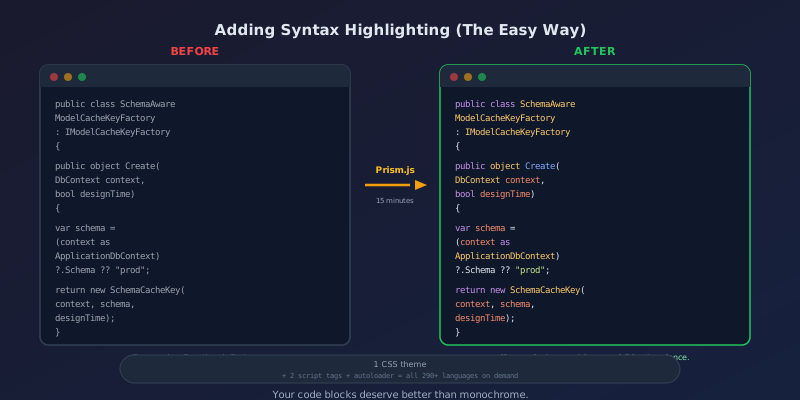
For months, the code blocks on this blog looked like this: white text on a dark background. Monochrome. Functional. Boring.
Every code snippet—C#, JavaScript, SQL, HTML—rendered in the same flat color. It worked, but it felt like reading a novel printed entirely in Courier.
Today, those same blocks have color. Keywords are purple. Strings are green. Comments are gray. And it took about fifteen minutes.
Before and After
Here's a C# snippet before:
public class SchemaAwareModelCacheKeyFactory : IModelCacheKeyFactory
{
    public object Create(DbContext context, bool designTime)
    {
        var schema = (context as ApplicationDbContext)?.Schema ?? "prod";
        return new SchemaCacheKey(context, schema, designTime);
    }
}
And after Prism.js:
public class SchemaAwareModelCacheKeyFactory : IModelCacheKeyFactory
{
    public object Create(DbContext context, bool designTime)
    {
        var schema = (context as ApplicationDbContext)?.Schema ?? "prod";
        return new SchemaCacheKey(context, schema, designTime);
    }
}
Same code. But now you can actually read it the way your IDE presents it. Types stand out. Strings pop. The structure is visible at a glance.
Why Prism.js
There are several syntax highlighting libraries. I considered:
- highlight.js — Popular, auto-detects languages, but heavier
- Shiki — Beautiful (uses VS Code's engine), but requires a build step
- Prism.js — Lightweight, CDN-ready, extensible, and the autoloader only fetches grammars you actually use
Prism won because it required zero build pipeline changes. Three lines in the HTML layout, a small CSS tweak, and done.
The Setup
Step 1: Add the CSS Theme
Prism ships with several themes. I went with "Tomorrow Night"—a dark theme that matches the blog's existing dark code blocks perfectly. One <link> tag in the <head>:
<link rel="stylesheet"
      href="https://cdnjs.cloudflare.com/ajax/libs/prism/1.29.0/themes/prism-tomorrow.min.css" />
Step 2: Add the JavaScript
Two scripts before </body>. The core library and the autoloader plugin:
<script src="https://cdnjs.cloudflare.com/ajax/libs/prism/1.29.0/prism.min.js"></script>
<script src="https://cdnjs.cloudflare.com/ajax/libs/prism/1.29.0/plugins/autoloader/prism-autoloader.min.js"></script>
The autoloader is the magic. Without it, you'd need to manually include a <script> for every language you use (C#, JavaScript, SQL, Bash, etc.). The autoloader detects which languages are on the page and fetches only those grammars on demand.
Step 3: Make Sure Your Markdown Outputs Language Classes
Prism works by looking for <code class="language-csharp"> (or whatever language). If your markdown processor outputs fenced code blocks with language hints, you're set.
My blog uses Markdig, which converts:
```csharp
var x = 42;
```
into:
<pre><code class="language-csharp">var x = 42;</code></pre>
That's exactly what Prism expects. No configuration needed.
Step 4: Fix the CSS Conflict
This was the only "gotcha." My Tailwind CSS had a style forcing all code text to a single color:
.prose pre code {
    color: #e5e5e5 !important;
}
That !important was overriding Prism's syntax colors—keywords, strings, comments all rendered as the same gray. Removing the !important (and the explicit color) let Prism's token styles take over while keeping the dark background.
Dark Mode Compatibility
The blog has a light/dark mode toggle, but the code blocks are always dark—even in light mode. This turned out to be perfect for Prism. The "Tomorrow Night" theme is already dark, so it matches in both modes. No theme switching logic needed.
If your blog uses light code blocks in light mode and dark in dark mode, you'd need to swap Prism themes. But for a "code is always dark" design, a single dark Prism theme just works.
What About Performance?
The core Prism JS file is ~15KB gzipped. The autoloader adds ~2KB. Language grammars are loaded on demand—the C# grammar is ~3KB, JavaScript ~2KB. For a blog that already loads web fonts and images, this is negligible.
The highlighting runs on page load. For typical blog post code blocks, it's instant—you won't see a flash of unstyled code.
Languages I Get for Free
With the autoloader, every language Prism supports is available automatically:
- C# —
language-csharp - JavaScript —
language-javascript - SQL —
language-sql - HTML —
language-html - CSS —
language-css - Bash —
language-bash - JSON —
language-json - YAML —
language-yaml
Plus about 290 more. All fetched on demand, only when a page actually uses them.
The Takeaway
If your blog renders markdown to HTML and you want syntax highlighting:
- Add the Prism CSS theme (one
<link>tag) - Add the Prism JS + autoloader (two
<script>tags) - Make sure your markdown outputs
language-*classes on code blocks - Remove any CSS that forces code to a single color
That's it. Fifteen minutes. No build tools. No configuration files. No npm packages to maintain.
Your code blocks deserve better than monochrome.
The code blocks in every post on this blog are now highlighted with Prism.js. Go look at Schema-Aware EF Core Migrations or SMS-Powered LLM and see the difference.