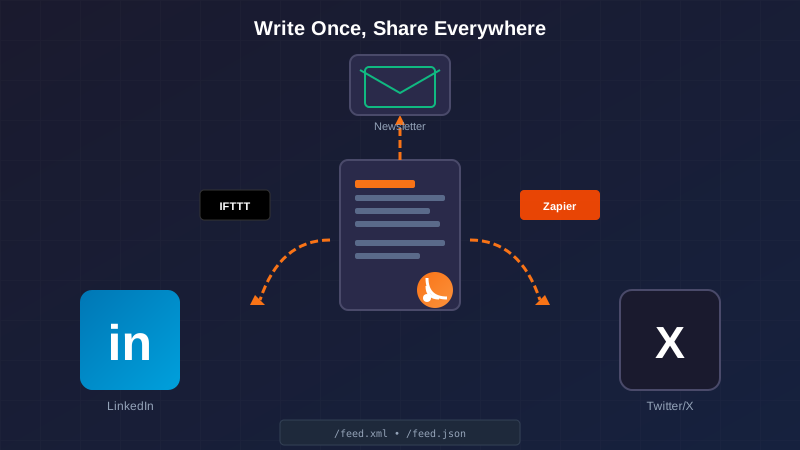
I just set up RSS feeds for this blog. The goal: write a post once, have it automatically shared to LinkedIn and wherever else makes sense.
This post documents the setup while it's fresh—including the custom LinkedIn integration I ended up building because I'm stubborn.
Why RSS in 2026?
RSS feels like ancient technology—and it kind of is. But it's also the universal adapter for content automation. Every major automation platform (Zapier, Make, IFTTT) can watch an RSS feed and trigger actions when new items appear.
The alternative is building custom integrations for every platform. RSS lets you build once and connect everywhere.
The Feed Endpoints
I added two feed formats to this blog:
RSS 2.0 — The classic format, works everywhere:
https://learnedgeek.com/feed.xml
JSON Feed — A modern alternative that's easier to parse programmatically:
https://learnedgeek.com/feed.json
Both contain the same data: the 20 most recent posts with title, description, publication date, and tags.
Building the RSS Controller
The implementation follows the same pattern as the sitemap—a controller that generates XML on the fly:
[Route("feed.xml")]
[ResponseCache(Duration = 3600)]
public async Task<IActionResult> Rss()
{
    var posts = await _blogService.GetAllPostsAsync();
    var recentPosts = posts
        .OrderByDescending(p => p.Date)
        .Take(20)
        .ToList();

    XNamespace atom = "http://www.w3.org/2005/Atom";
    var rss = new XDocument(
        new XDeclaration("1.0", "UTF-8", null),
        new XElement("rss",
            new XAttribute("version", "2.0"),
            new XAttribute(XNamespace.Xmlns + "atom", atom),
            new XElement("channel",
                new XElement("title", "Learned Geek"),
                new XElement("link", baseUrl),
                new XElement("description", "..."),
                // ... channel metadata ...
                recentPosts.Select(post => new XElement("item",
                    new XElement("title", post.Title),
                    new XElement("link", $"{baseUrl}/Blog/Post/{post.Slug}"),
                    new XElement("pubDate", post.Date.ToString("R")),
                    new XElement("description", post.Description)
                ))
            )
        )
    );

    return Content(rss.ToString(), "application/rss+xml", Encoding.UTF8);
}
Key details:
- Atom namespace — Required for the self-referencing link that feed validators expect
- RFC 822 date format — The
"R"format specifier gives you the right format for RSS - Response caching — No need to regenerate on every request; 1 hour is plenty
Feed Auto-Discovery
For feed readers to automatically find your feed, add these links to your <head>:
<link rel="alternate" type="application/rss+xml"
      title="Learned Geek RSS Feed" href="/feed.xml" />
<link rel="alternate" type="application/json"
      title="Learned Geek JSON Feed" href="/feed.json" />
This lets browsers and feed readers show the little RSS icon and offer to subscribe.
Automation Options
With feeds in place, here's how to connect them to social platforms:
Zapier (Easiest)
- Create a Zap with trigger "New Item in RSS Feed"
- Enter your feed URL:
https://yoursite.com/feed.xml - Add action "Create Share Update" for LinkedIn
- Map title, description, and link to the post fields
- Test and enable
Limitations:
- Free tier: 100 tasks/month
- LinkedIn posts are basic text + link (no rich cards)
- Can only post to personal profiles, not company pages
IFTTT
Similar flow, sometimes better LinkedIn integration for personal accounts. Worth trying if Zapier's LinkedIn connection doesn't work for you.
Make.com (formerly Integromat)
More powerful than Zapier, steeper learning curve. Better for complex workflows like "post to LinkedIn AND Twitter AND send a newsletter."
Buffer / Hootsuite
These aren't RSS-triggered, but you can use Zapier to push RSS items into their queues for scheduled posting.
The LinkedIn API Route (What I Actually Built)
I wanted more control over post formatting—the ability to customize the commentary, preview before posting, and avoid third-party automation fees. So I went direct to LinkedIn's API.
Here's what that actually involved.
Step 1: Create a LinkedIn App
- Go to LinkedIn Developer Portal
- Create a new app (requires a LinkedIn Page to associate with)
- Under Products, request access to "Share on LinkedIn"
- Note your Client ID and Client Secret
- Add your OAuth redirect URI (e.g.,
https://yoursite.com/admin/linkedin/callback)
Important: LinkedIn's API access is restricted. You need to request the w_member_social scope, which requires verification. For personal projects, this usually gets approved within a few days.
Step 2: Implement OAuth 2.0
The OAuth flow is standard:
public string GetAuthorizationUrl(string state)
{
    var scopes = "openid profile w_member_social";
    return $"https://www.linkedin.com/oauth/v2/authorization" +
           $"?response_type=code" +
           $"&client_id={_settings.ClientId}" +
           $"&redirect_uri={Uri.EscapeDataString(_settings.RedirectUri)}" +
           $"&state={state}" +
           $"&scope={Uri.EscapeDataString(scopes)}";
}
When the user authorizes, LinkedIn redirects back with a code parameter. Exchange it for an access token:
public async Task<LinkedInTokenResponse?> ExchangeCodeForTokenAsync(string code)
{
    var content = new FormUrlEncodedContent(new Dictionary<string, string>
    {
        ["grant_type"] = "authorization_code",
        ["code"] = code,
        ["client_id"] = _settings.ClientId,
        ["client_secret"] = _settings.ClientSecret,
        ["redirect_uri"] = _settings.RedirectUri
    });

    var response = await _httpClient.PostAsync(
        "https://www.linkedin.com/oauth/v2/accessToken", content);

    // Parse response for access_token
}
Step 3: Get the Member ID
LinkedIn's posting API needs your member ID (the sub claim from OpenID):
public async Task<string?> GetMemberIdAsync(string accessToken)
{
    using var request = new HttpRequestMessage(HttpMethod.Get,
        "https://api.linkedin.com/v2/userinfo");
    request.Headers.Authorization = new AuthenticationHeaderValue("Bearer", accessToken);

    var response = await _httpClient.SendAsync(request);
    var json = await response.Content.ReadAsStringAsync();

    using var doc = JsonDocument.Parse(json);
    return doc.RootElement.GetProperty("sub").GetString();
}
Step 4: Post to LinkedIn
This is where LinkedIn gets weird. Their API uses a verbose JSON format with type discriminators:
public async Task<LinkedInPostResult> SharePostAsync(string text, string articleUrl)
{
    var payload = $$"""
    {
        "author": "urn:li:person:{{_settings.MemberId}}",
        "lifecycleState": "PUBLISHED",
        "specificContent": {
            "com.linkedin.ugc.ShareContent": {
                "shareCommentary": {
                    "text": {{JsonSerializer.Serialize(text)}}
                },
                "shareMediaCategory": "ARTICLE",
                "media": [
                    {
                        "status": "READY",
                        "originalUrl": {{JsonSerializer.Serialize(articleUrl)}}
                    }
                ]
            }
        },
        "visibility": {
            "com.linkedin.ugc.MemberNetworkVisibility": "PUBLIC"
        }
    }
    """;

    using var request = new HttpRequestMessage(HttpMethod.Post,
        "https://api.linkedin.com/v2/ugcPosts");
    request.Headers.Authorization = new AuthenticationHeaderValue("Bearer", _settings.AccessToken);
    request.Headers.Add("X-Restli-Protocol-Version", "2.0.0");
    request.Content = new StringContent(payload, Encoding.UTF8, "application/json");

    var response = await _httpClient.SendAsync(request);
    // Handle response...
}
Key gotchas:
- The
X-Restli-Protocol-Version: 2.0.0header is required - Member ID format is
urn:li:person:{id} - The nested
com.linkedin.ugc.*keys are type discriminators, not typos - Use
shareMediaCategory: "ARTICLE"for link posts with preview cards
What LinkedIn Posts Support
LinkedIn's posting API is more limited than you might expect:
Supported:
- Plain text with line breaks
- Emojis
- Hashtags (parsed automatically)
- Article links (generates preview card)
- @mentions (if you have the URN)
Not Supported:
- Markdown formatting
- Bullet points (fake them with • characters)
- Bold/italic text
- Multiple images per post (without additional API access)
The Admin Panel
I built a simple admin panel at /admin to manage LinkedIn sharing:
- Lists all blog posts
- Pre-populates suggested post text (title, description, hashtags)
- Shows a preview of how the post will look
- One-click sharing to LinkedIn
The suggested post format I settled on:
📝 New blog post: {Title}

{Description}

#{Tag1} #{Tag2} #{Tag3}
It's nothing fancy, but it gives me control over the messaging before each post goes out.
The Image Upload Solution
After using the article link approach for a while, I noticed the preview cards were unreliable. Sometimes they'd show up immediately, sometimes hours later, sometimes never. That's why you see so many LinkedIn posts with images attached directly—it's more reliable than hoping the scraper does its job.
LinkedIn's image upload is a three-step dance:
Step 1: Register the Upload
First, you request an upload URL from LinkedIn:
var registerPayload = $$"""
{
    "registerUploadRequest": {
        "recipes": ["urn:li:digitalmediaRecipe:feedshare-image"],
        "owner": "urn:li:person:{{memberId}}",
        "serviceRelationships": [
            {
                "relationshipType": "OWNER",
                "identifier": "urn:li:userGeneratedContent"
            }
        ]
    }
}
""";

var response = await _httpClient.PostAsync(
    "https://api.linkedin.com/v2/assets?action=registerUpload",
    new StringContent(registerPayload, Encoding.UTF8, "application/json"));
The response contains an uploadUrl and an asset URN you'll need later.
Step 2: Upload the Image Binary
PUT the raw image bytes to the upload URL:
using var uploadRequest = new HttpRequestMessage(HttpMethod.Put, uploadUrl);
uploadRequest.Headers.Authorization = new AuthenticationHeaderValue("Bearer", accessToken);
uploadRequest.Content = new ByteArrayContent(imageData);
uploadRequest.Content.Headers.ContentType = new MediaTypeHeaderValue("image/png");

await _httpClient.SendAsync(uploadRequest);
Step 3: Post with the Image
Now create the post using shareMediaCategory: "IMAGE" instead of "ARTICLE":
var postPayload = $$"""
{
    "author": "urn:li:person:{{memberId}}",
    "lifecycleState": "PUBLISHED",
    "specificContent": {
        "com.linkedin.ugc.ShareContent": {
            "shareCommentary": {
                "text": {{JsonSerializer.Serialize(text + "\n\n" + articleUrl)}}
            },
            "shareMediaCategory": "IMAGE",
            "media": [
                {
                    "status": "READY",
                    "media": {{JsonSerializer.Serialize(asset)}}
                }
            ]
        }
    },
    "visibility": {
        "com.linkedin.ugc.MemberNetworkVisibility": "PUBLIC"
    }
}
""";
Note: The article URL goes in the text body now, since we're not using the ARTICLE media type.
SVG to PNG Conversion
My blog post images are all SVGs, but LinkedIn doesn't accept SVG uploads. I added on-the-fly conversion using SkiaSharp:
using var svg = new SKSvg();
svg.Load(svgPath);

using var bitmap = new SKBitmap((int)svg.Picture.CullRect.Width, (int)svg.Picture.CullRect.Height);
using var canvas = new SKCanvas(bitmap);
canvas.Clear(SKColors.White);
canvas.DrawPicture(svg.Picture);

using var image = SKImage.FromBitmap(bitmap);
using var data = image.Encode(SKEncodedImageFormat.Png, 90);
return data.ToArray();
Now every post shares with its hero image attached—much more visually appealing in the feed.
Results
LinkedIn via Zapier: Never actually tried it. By the time I had feeds working, I was already down the API rabbit hole.
LinkedIn API direct: Works great. The initial setup took a few hours (mostly fighting with LinkedIn's documentation), but now I can share posts with custom commentary in seconds.
LinkedIn with images: Even better. Posts with images get more engagement, and I don't have to wait for LinkedIn's scraper to maybe generate a preview card.
Unexpected issues:
- LinkedIn access tokens expire after 60 days. I'll need to implement refresh token handling eventually, or just re-authorize periodically.
- LinkedIn's developer documentation is... not great. The API works, the docs are just confusing.
The Feed Validation Checklist
Before connecting automation, validate your feeds:
- W3C Feed Validation Service for RSS
- JSON Feed Validator for JSON Feed
Common issues:
- Invalid date format — RSS wants RFC 822 (
Tue, 21 Jan 2026 00:00:00 GMT) - Missing self-link — Feed validators complain without the Atom self-reference
- Encoding issues — Make sure you're returning UTF-8
The Takeaway
RSS is boring infrastructure, but it's the foundation for "write once, publish everywhere." The feeds took about an hour to set up. The LinkedIn integration took considerably longer—but now I have full control over how my posts appear, no monthly fees, and a hidden admin panel that makes sharing take seconds.
Was building custom LinkedIn integration worth it versus using Zapier? Probably not from a pure time-ROI perspective. But I learned how OAuth 2.0 works with a real API, I have something I fully control, and I got a blog post out of it. That's a win in my book.
The code for this integration lives in the LearnedGeek repository. The admin panel is hidden (no links, blocked by robots.txt) but fully functional.
Meta note: This post was shared to LinkedIn approximately 47 times during testing. If you saw it appear and disappear repeatedly in your feed... now you know why.